Editing your Profile and Password
Updated 02/05/2026
Editing your Profile and Password on the Web
NOTE: This article tells you how to change your password at any given time. If you have just had your account activated or had your password reset, you will be prompted to change your password automatically upon login, as we do not allow for users to keep their temporary/default password.
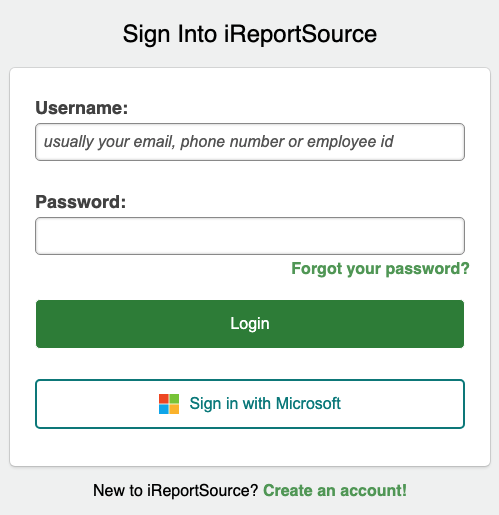
Log into iReport at http://ireportapp.com/login
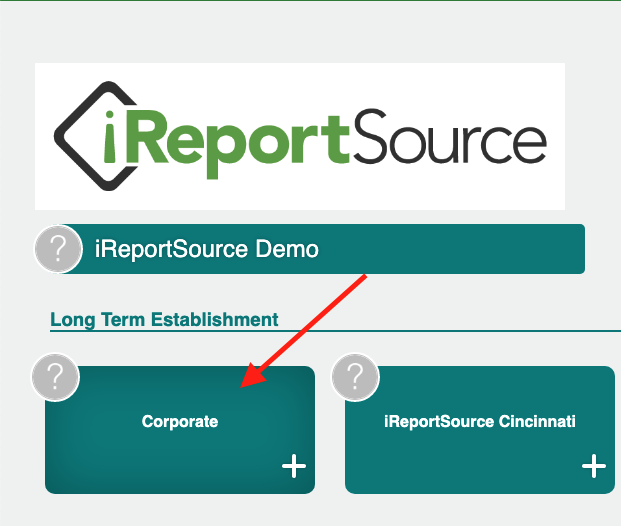
2. Click into your location:
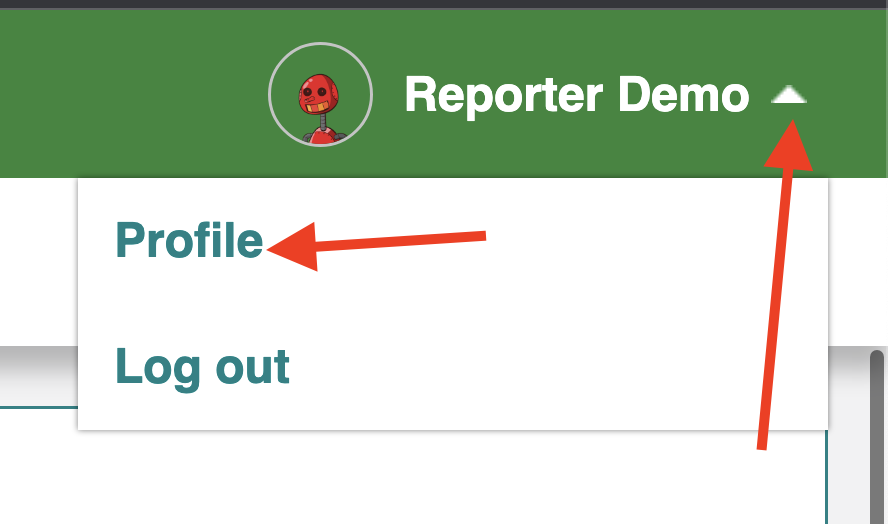
3. In the top right corner of the page, click on your name and select Profile:
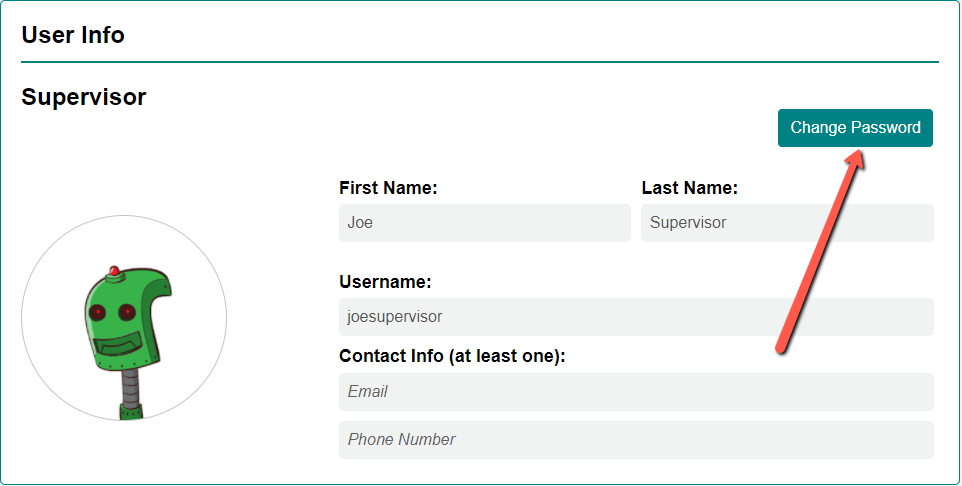
4. To change your password, click the Change Password button:
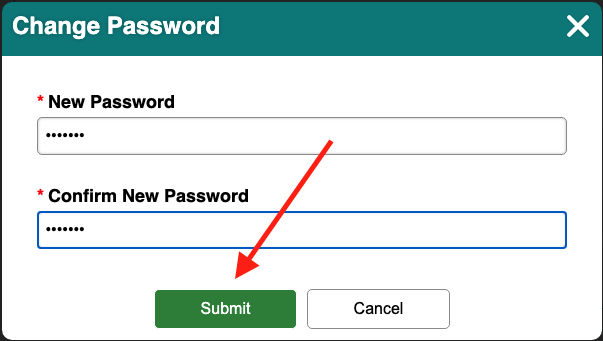
5. Enter and confirm your new password, then click Submit:
6. To edit any of your personal information, click the Edit button:
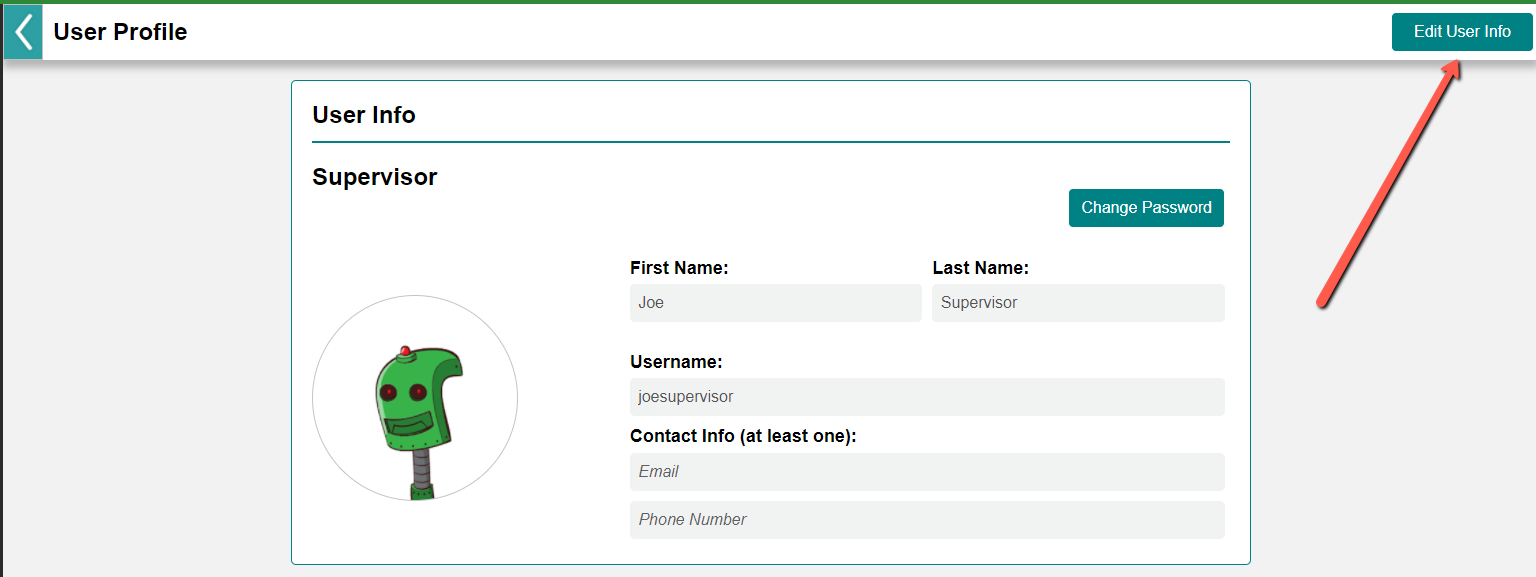
On the Edit Profile Settings page, you can edit:
Profile Picture (this is done by clicking on the existing picture)
Name
Username
Phone #
Email
Notification Preferences (See this article for a detailed look at Notification Preferences)
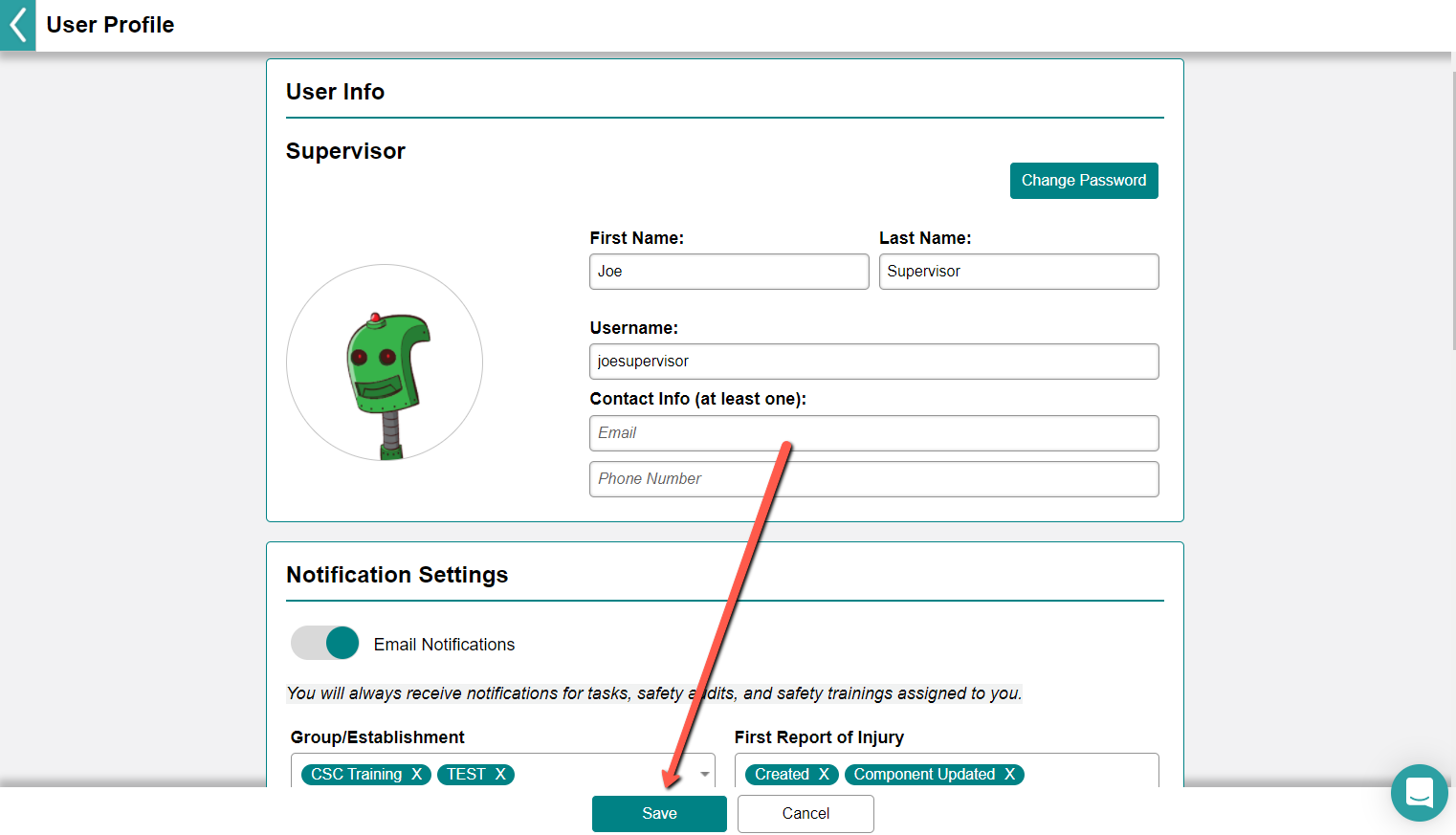
7. Click Save at the bottom of the page after making any changes:
Editing your Profile and Password on the Mobile App
NOTE: This article tells you how to change your password at any given time. If you have just had your account activated or had your password reset, you will be prompted to change your password automatically upon login, as we do not allow for users to keep their temporary/default password.
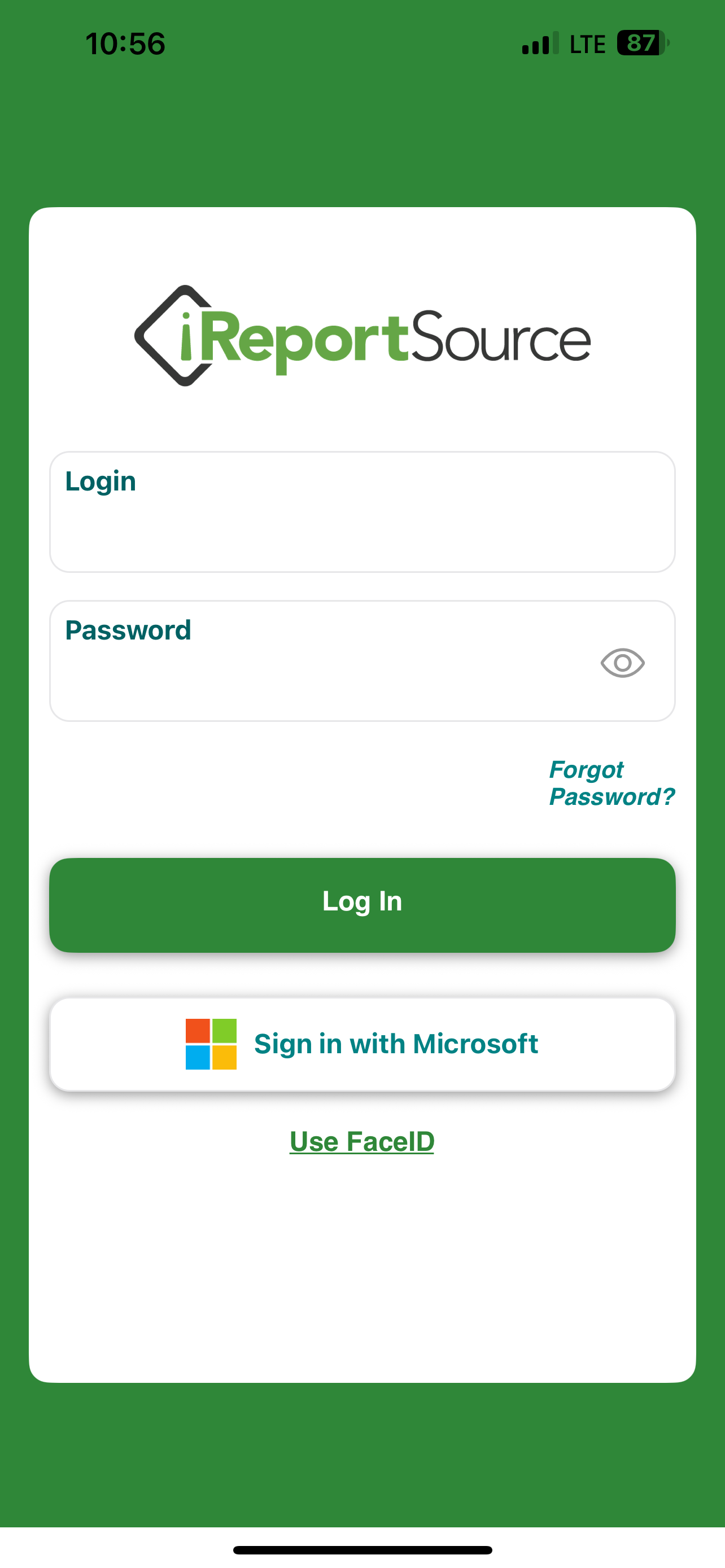
1. Log into the Mobile App:
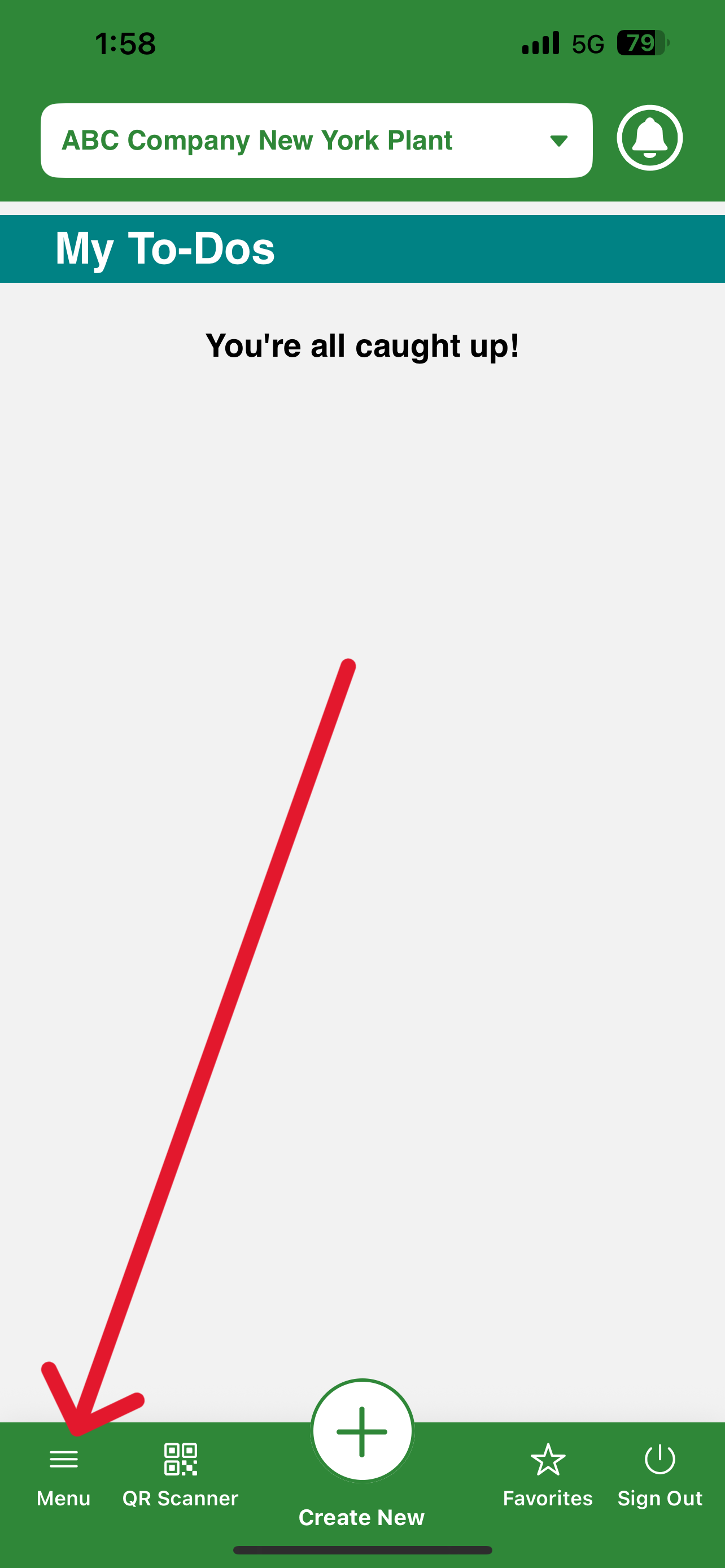
2. Click on the menu in the bottom left corner:
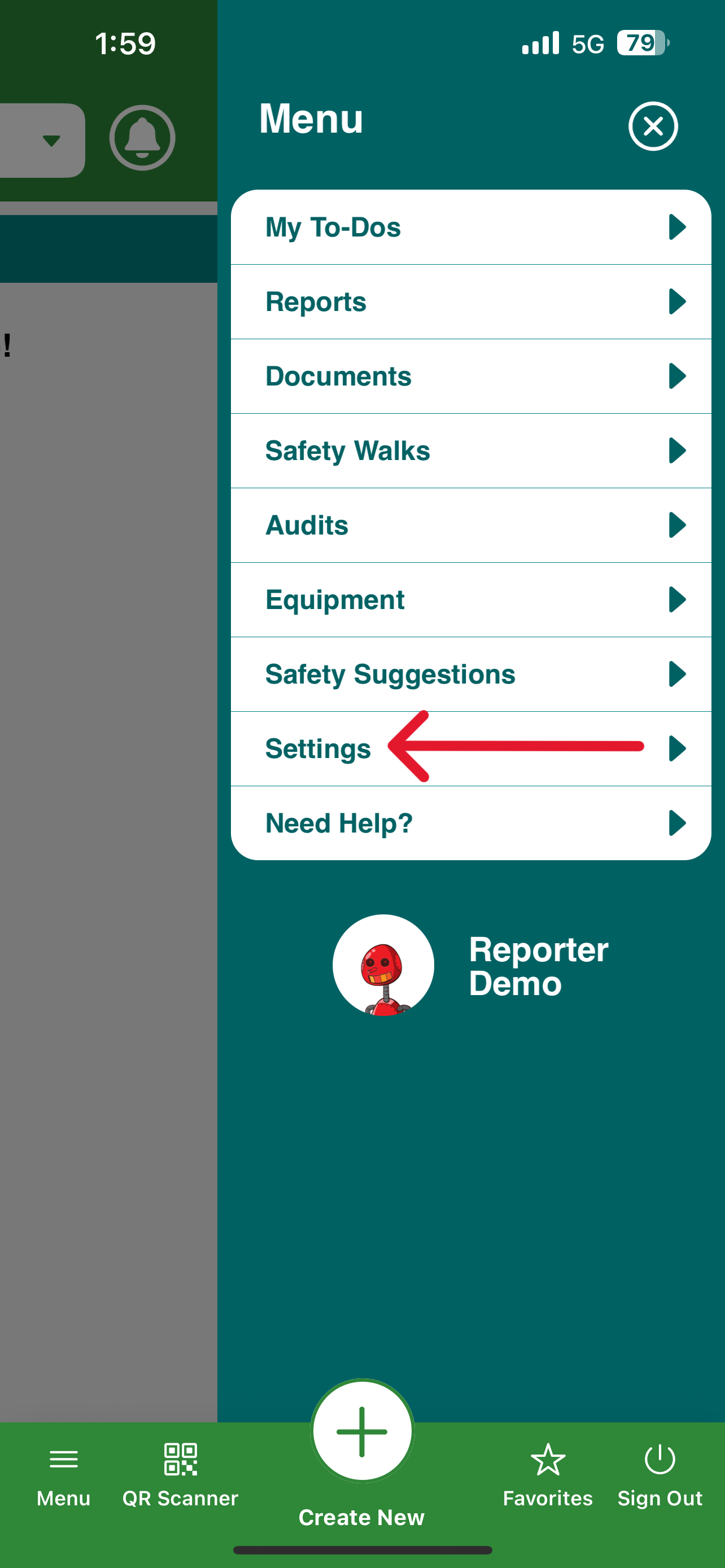
3. Click on Settings:
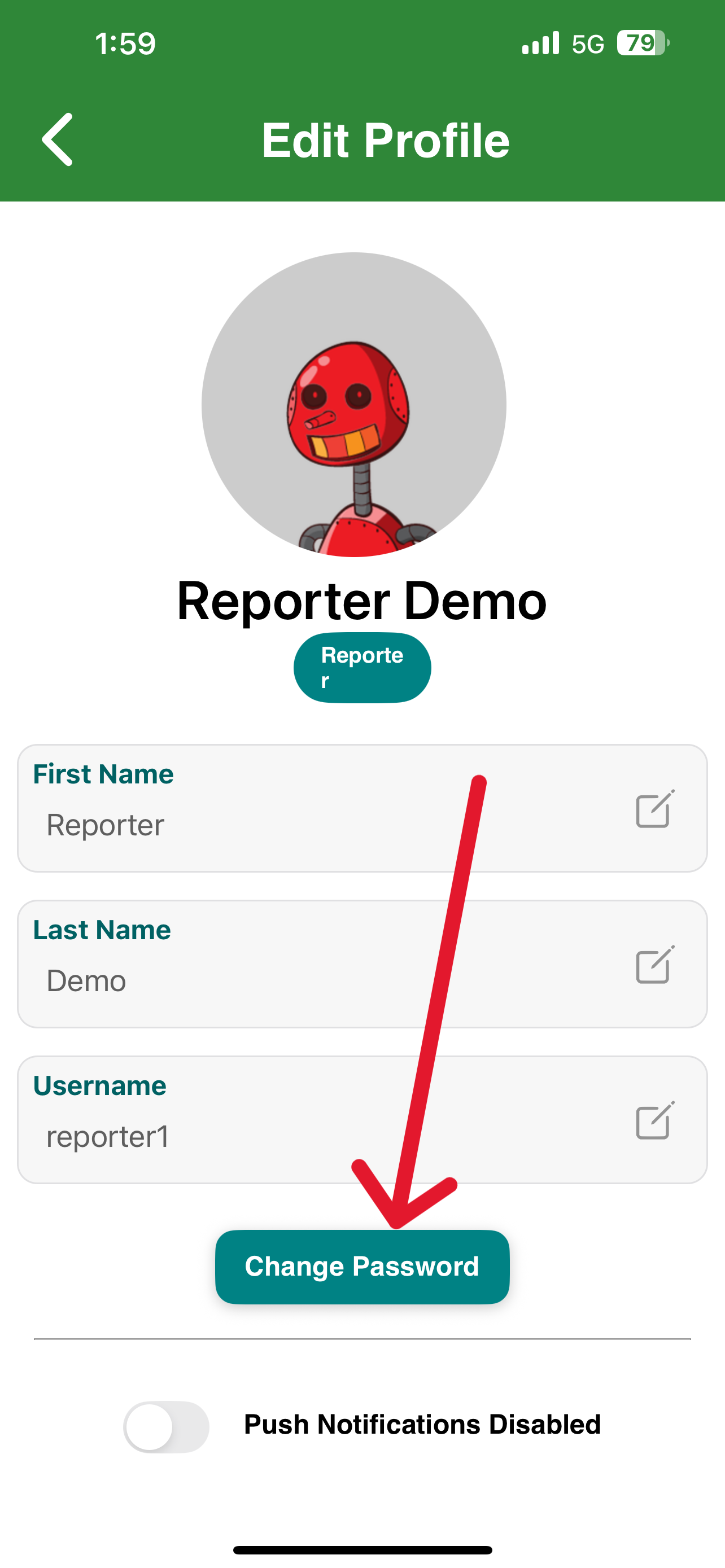
4. To change your password, click the Change Password button:
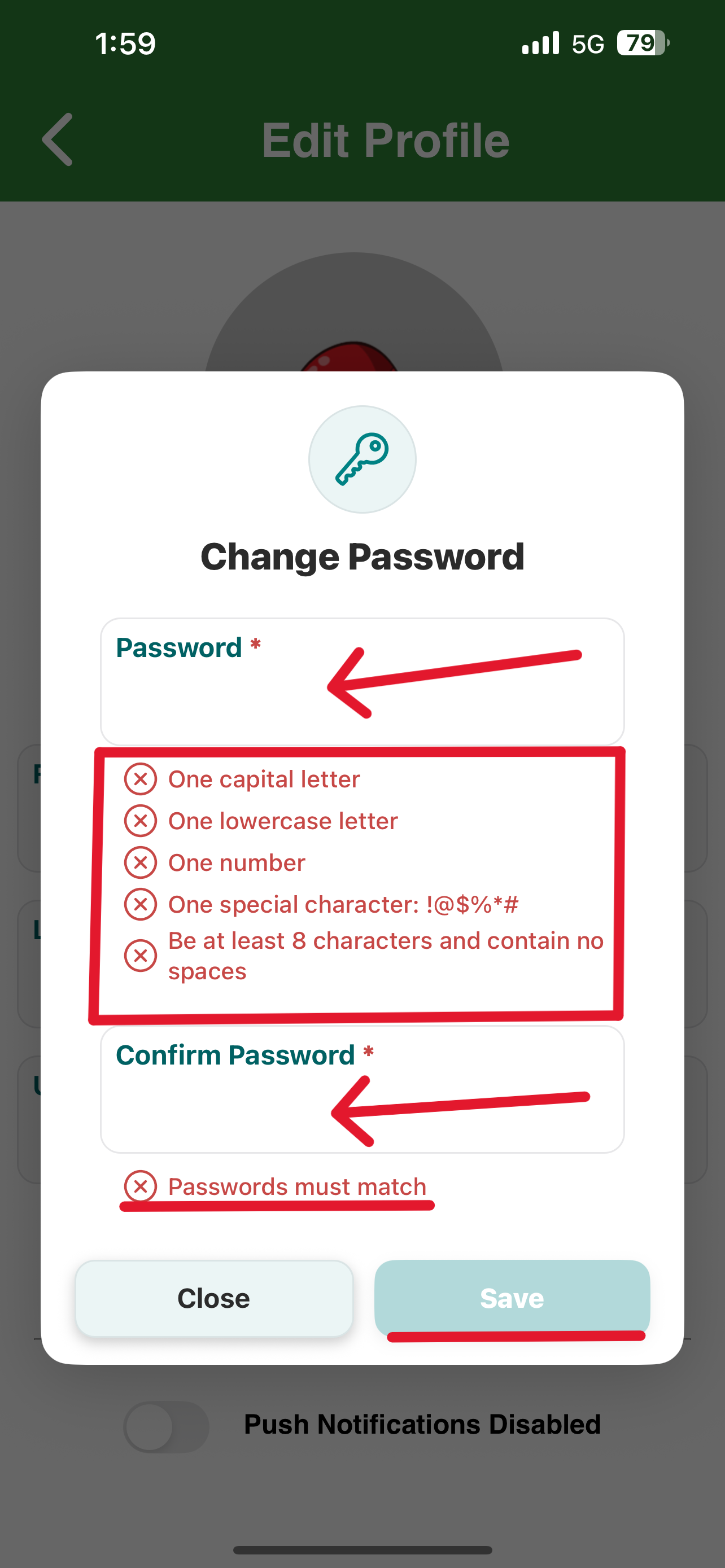
5. Enter and confirm your new password, then click Save Changes:
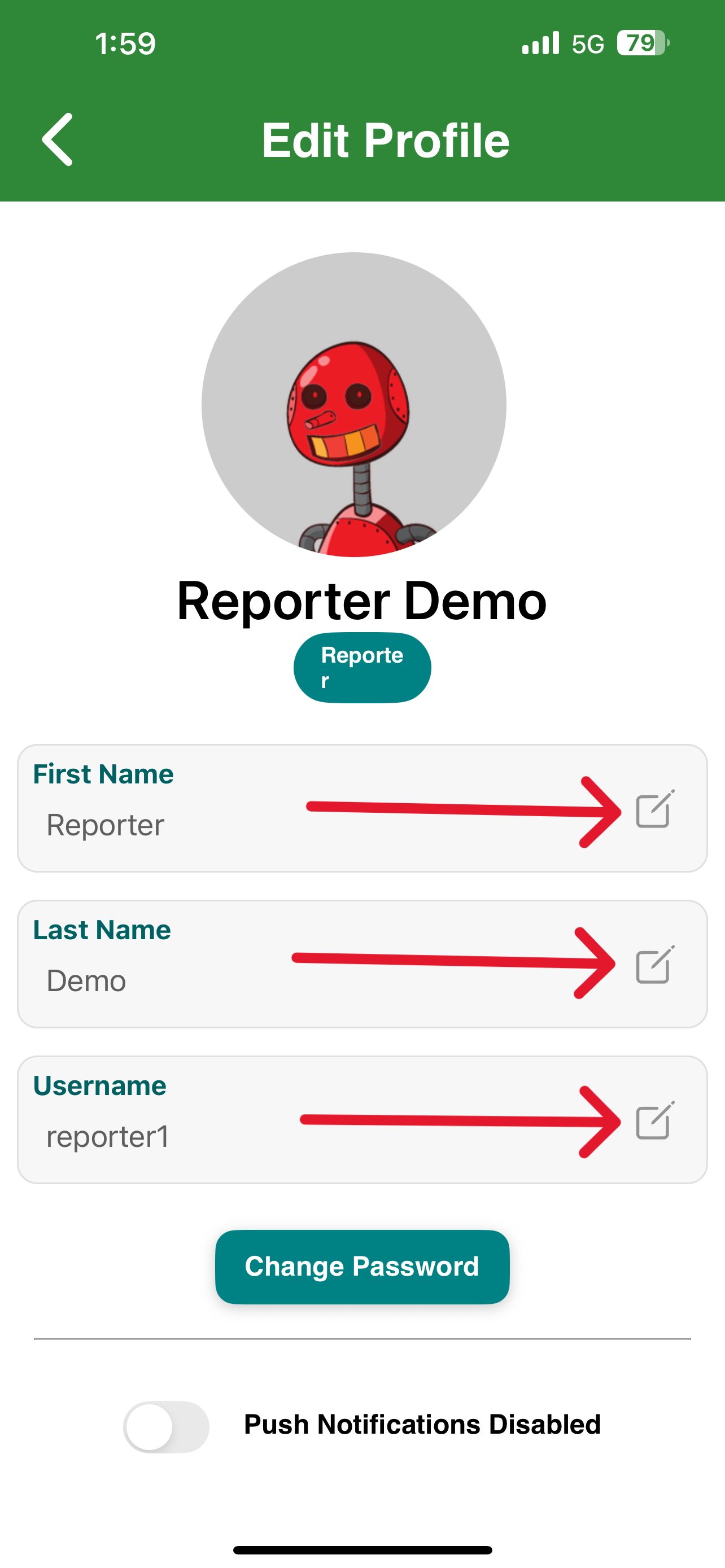
6. To edit any of your personal information, click the Edit icon next to it: