Tracking In-Person Meeting/Training Attendance Using the Website
Updated 6/21/2023
Our Safety Training feature allows you to track the attendance of safety meetings, toolbox talks, or any other in-person meetings very easily. Tracking them this way allows you to run reports in MyAnalytics to find who has attended which meetings, and more importantly, who hasn’t.
This article walks you through how to track attendance for in-person meetings using the website. See this article for steps to track using the mobile app.
Log into iReportSource at https://www.ireportapp.com/login
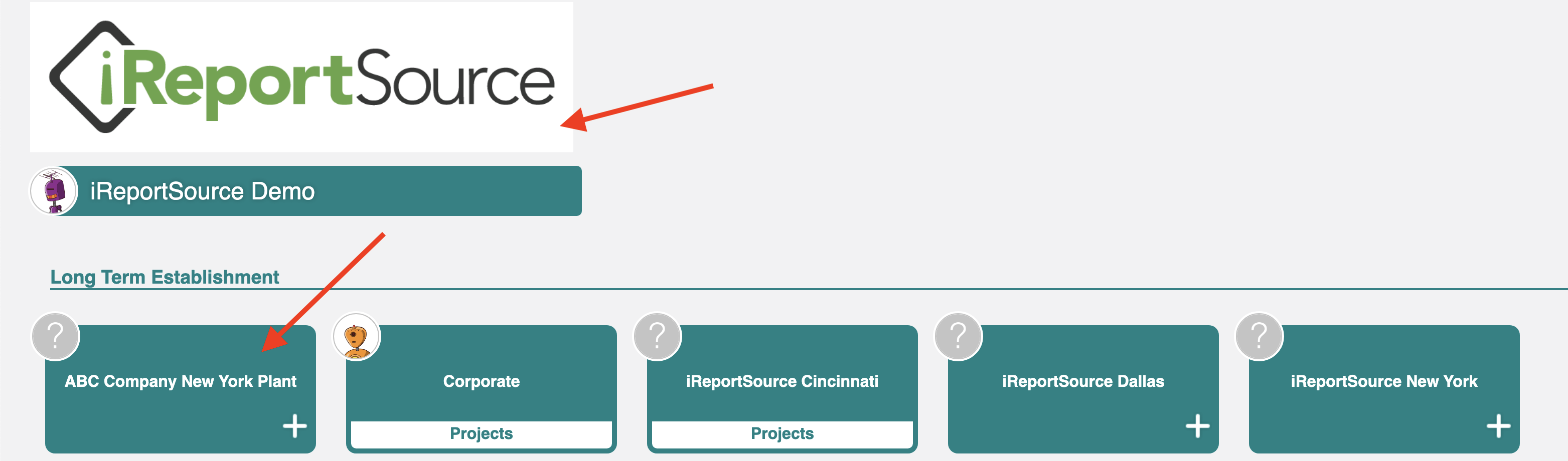
Choose the company or location for which you’d like to track a training/meeting:
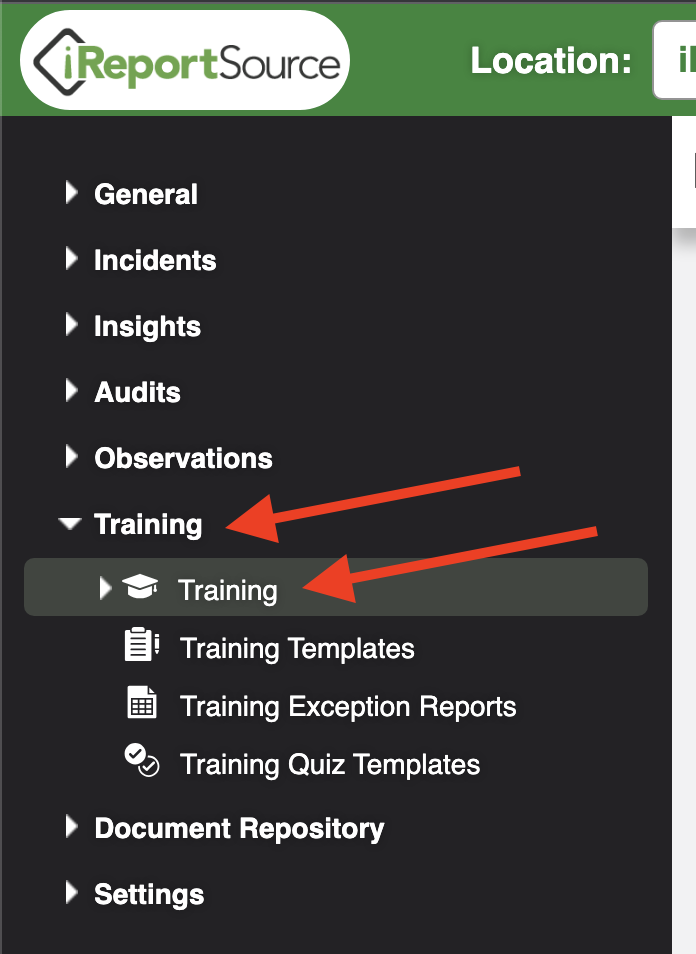
3. Click on Training > Training on the left-side menu:
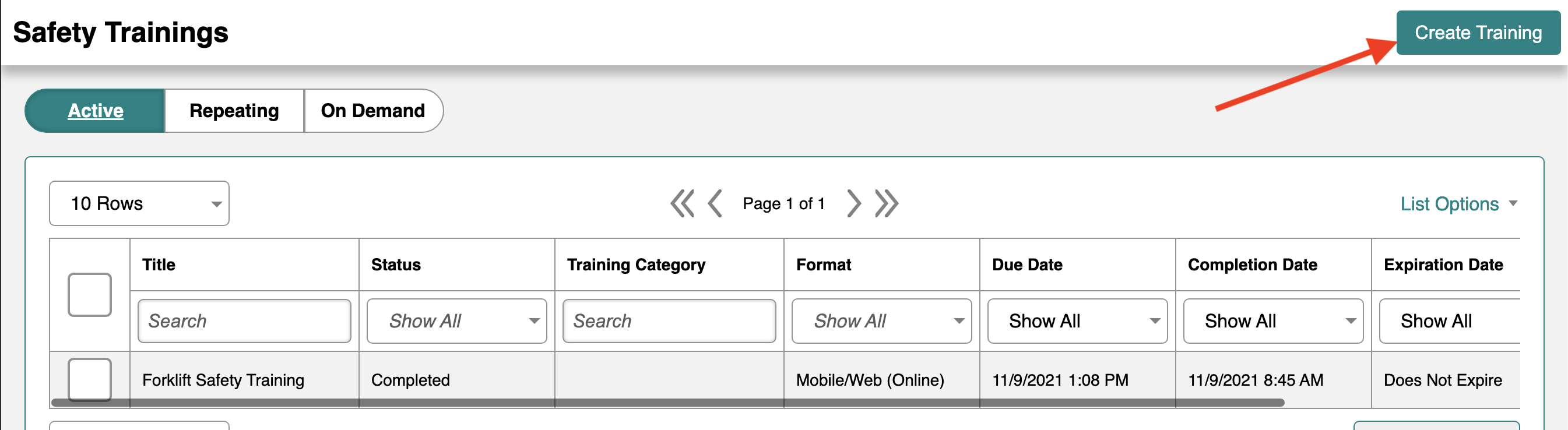
4. Click Create Training on the top-right corner of the page:
5. Important: For the Training Type, choose On the Spot (In Person).
This means that the meeting already happened and the training will not require any further action from employees.
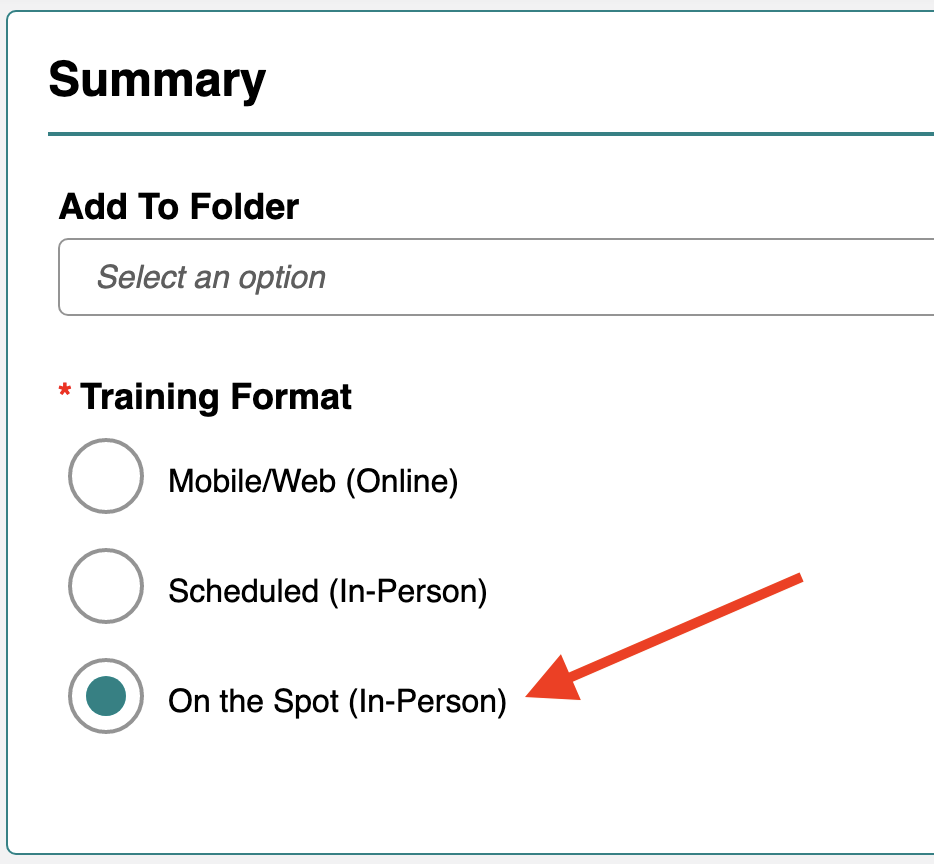
*NOTE* You can also choose a Folder here if you wish to have this training available in a specific training folder (OPTIONAL)
6. Select your Group/Establishment and Project (optional):
NOTE: If you went into a group/establishment upon logging in, you’ll only have the option to choose a project here

7. Choose a Training Template (optional)

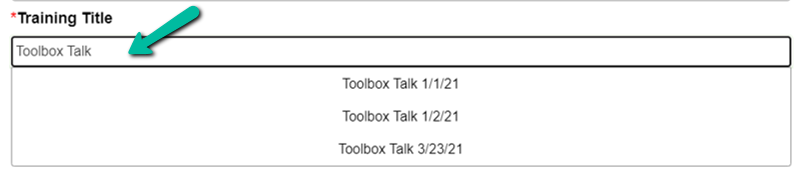
8. If you do not choose a template, you can type in the title. Choosing the template will pre-populate the title, parameters, and materials for you.
9. Chose the training category (optional)
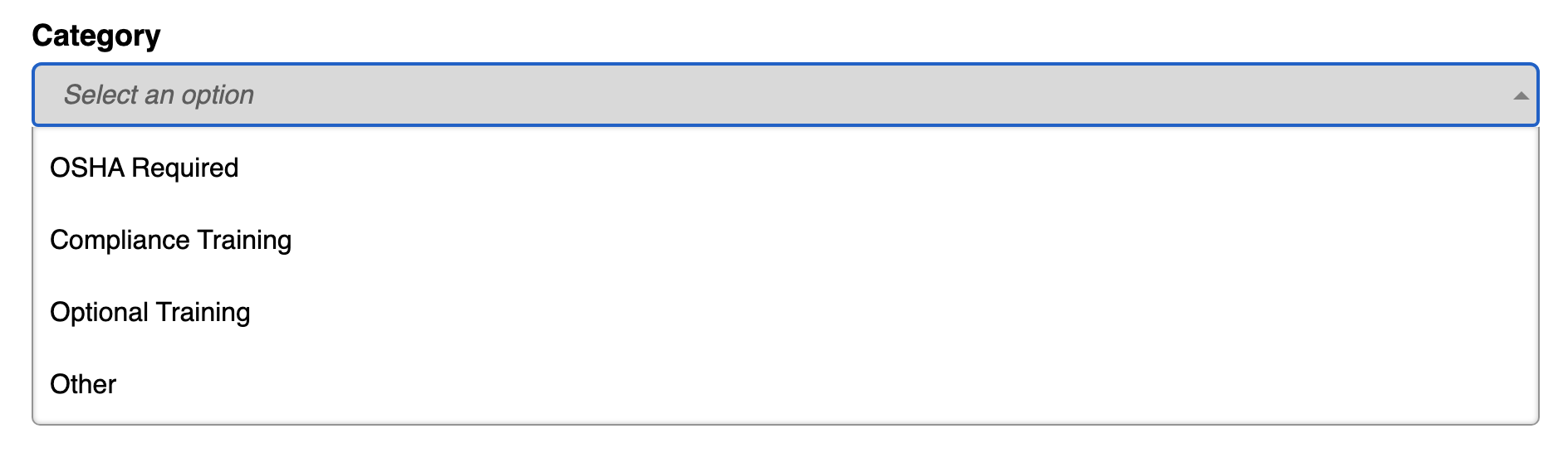
*NOTE* Choosing a category will allow you track all trainings with that category within MyAnalytics.
10. Enter any instructions and choose whether the training expires (optional):
NOTE: If you choose that the training expires, you will be able to choose the date/time when it expires.
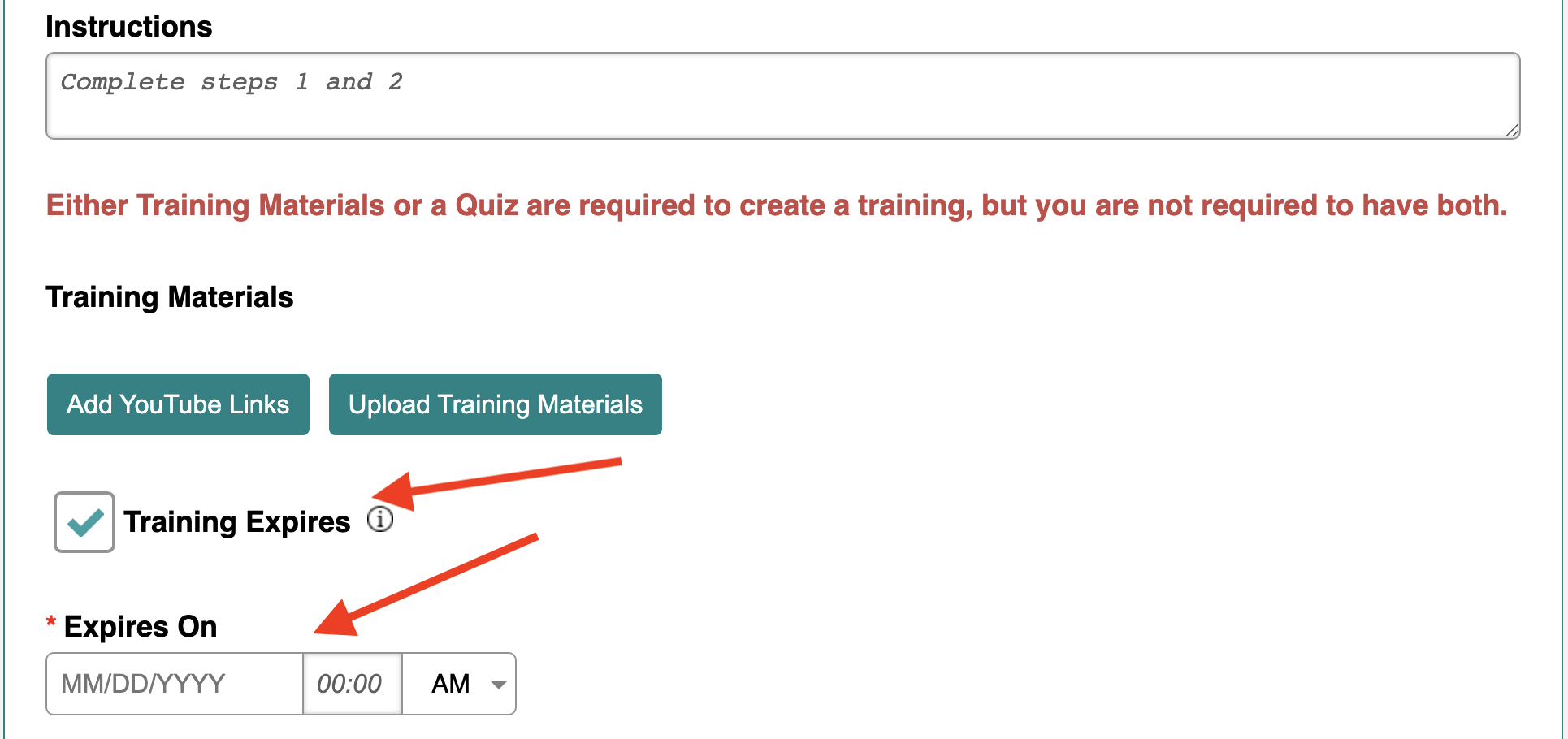
11. Add your training materials.

*NOTE* You will need to add some type of training material in order to create the training. This can be the reviewed material, a sign-in sheet, or some other document associated with the training.
*NOTE* Quizzes are not available for On the Spot (In Person) trainings as they are assumed to be done either prior or in person.
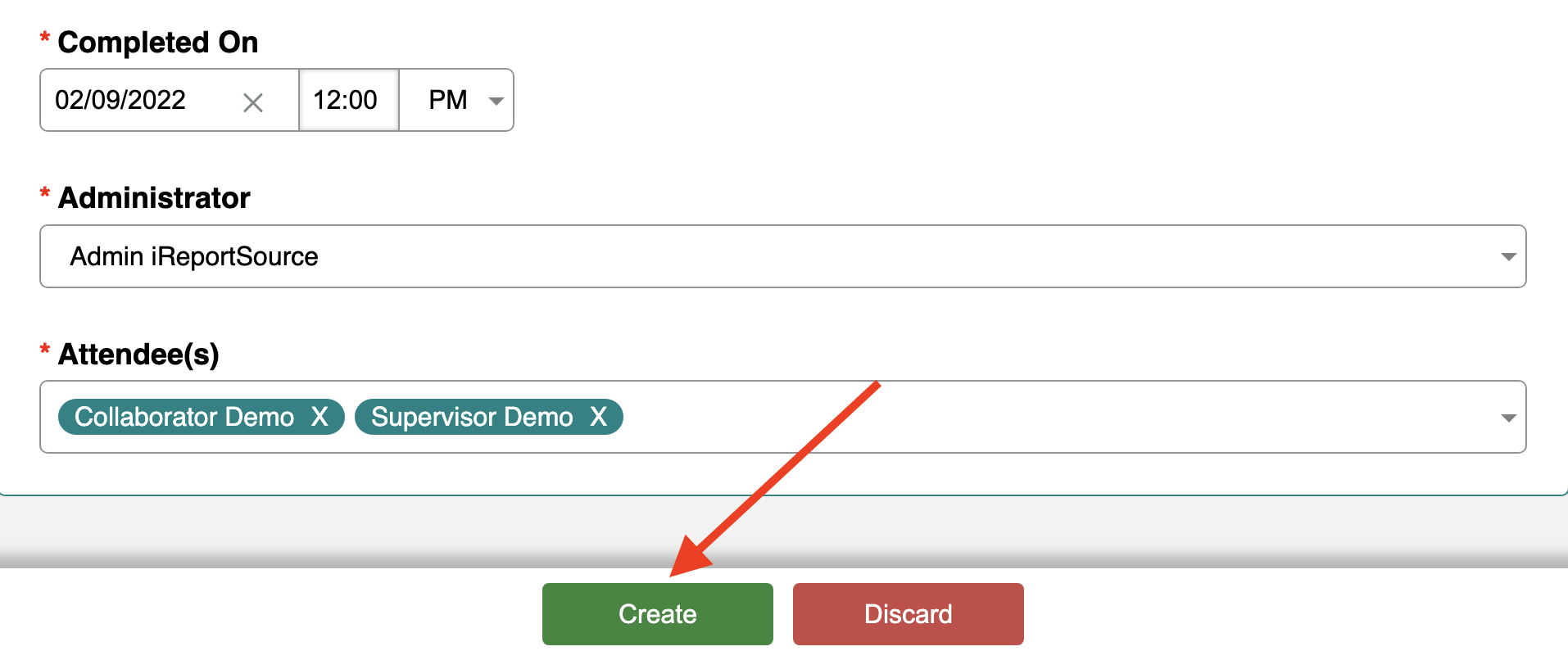
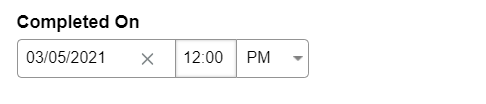
12. Enter the date/time when the training was completed:
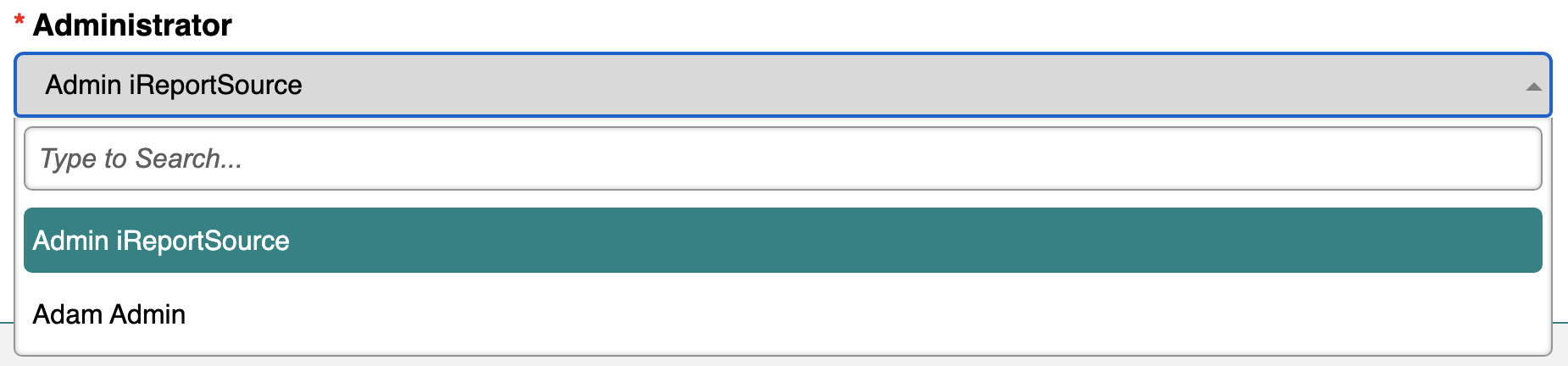
13. Choose the administrator of the training
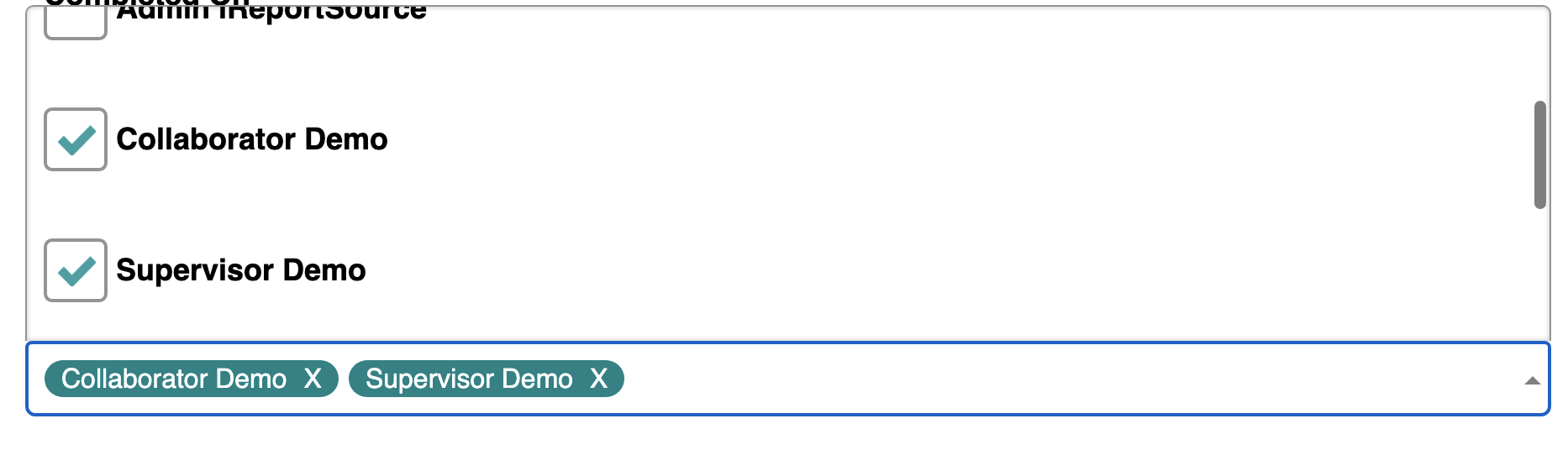
14. Click Attendee(s) and select the employee(s) who attended the meeting:

15. Click Create when you are ready to save the entry: