Reporters: How to Download an Initial Report PDF (Web only)
Updated 10/30/2023
When it comes to Incident Reports, Reporter level users are limited to viewing only reports that they have submitted. This article will walk a Reporter Level user through the process of downloading a PDF of one of these Incident Reports.
1. Log into iReport at http://ireportapp.com/login
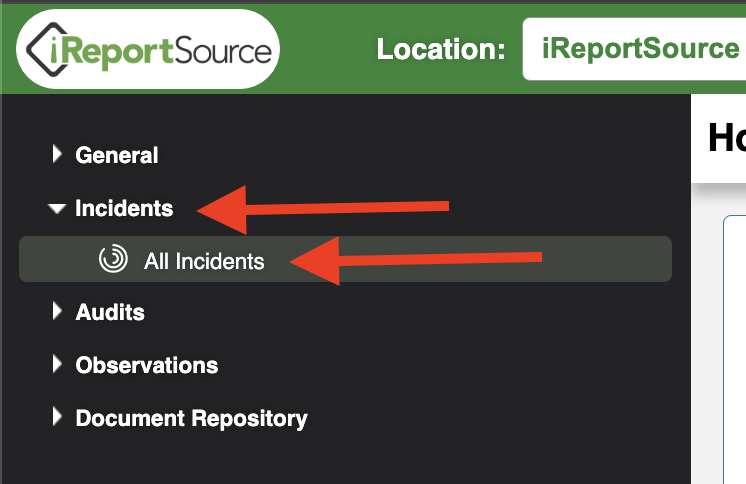
2. From your home page, select on the left Incidents -> All Incidents
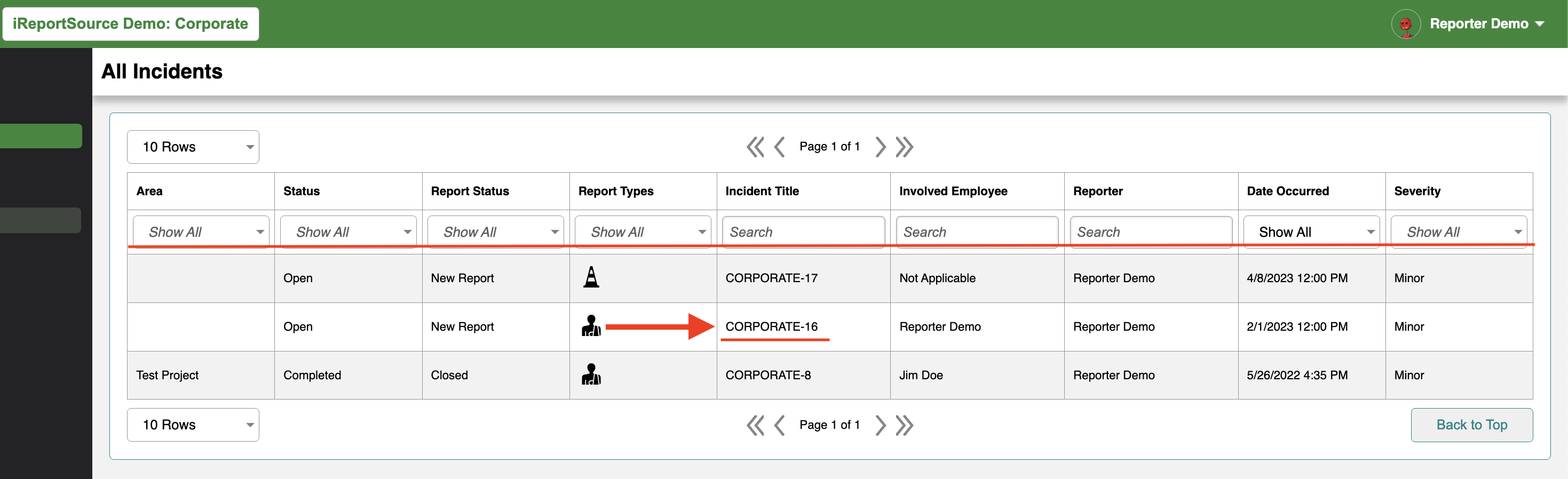
3. On the All Incidents page you will see all incidents that you have reported. You can use the various search bars and drop downs to find the specific incident you are looking for, or you can manually scan through the available options. Once you have found the incident you are looking for, simply click into it.
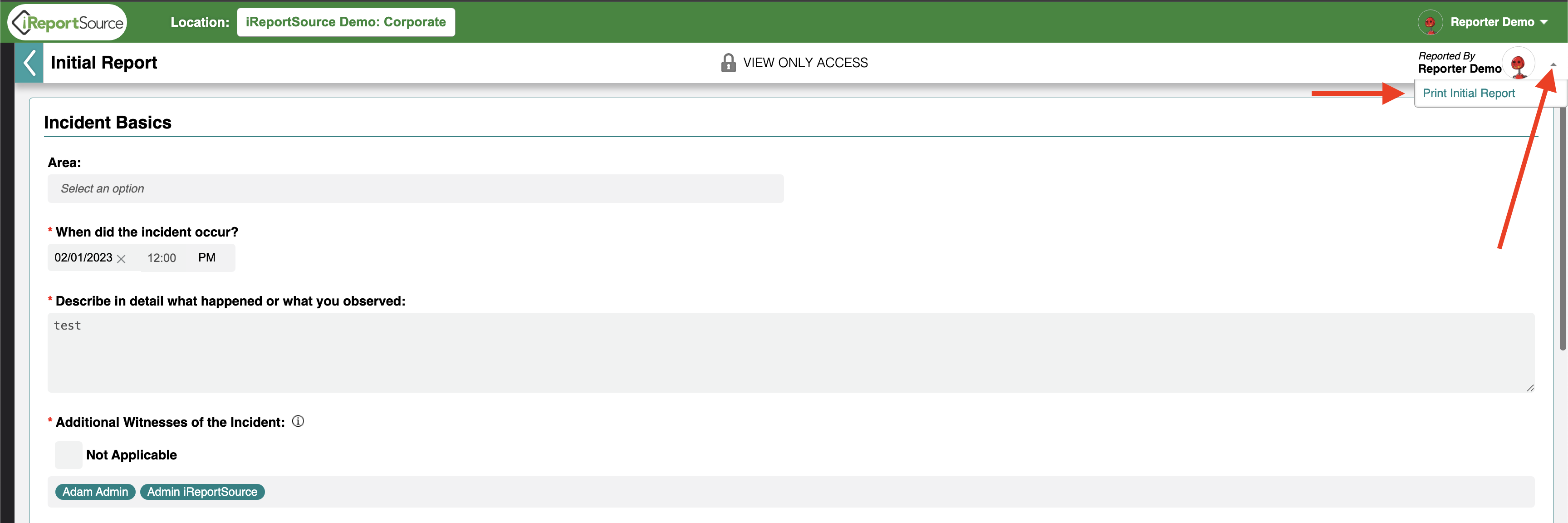
4. You will then see the initial report for your chosen incident. In the top right corner, click on the arrow ^ next to where it says "Reported by _______". A small drop down will appear saying Print Initial Report. Click on Print Initial Report.
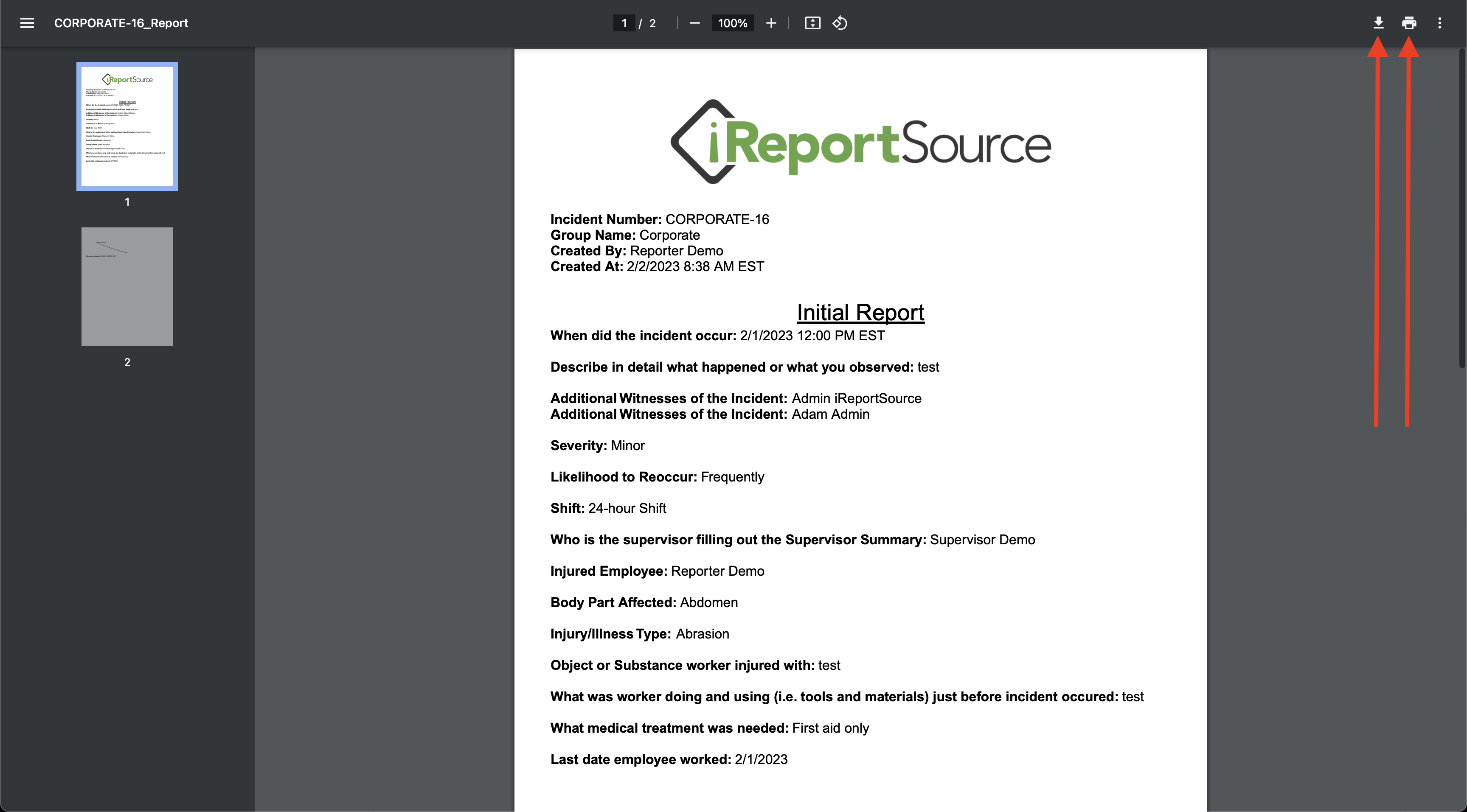
5. A new tab will open with a PDF of the initial report. From here you may save the PDF to share via email, or to print as needed. You are all set!
NOTE: If the PDF does not open, please check your browser's pop-up blocker settings and ensure that all pop-ups are allowed from iReportSource.