Creating/Managing Safety Training Templates
Updated 5/13/2022
NOTE: Only administrator users have the ability to add/edit safety training templates.
Creating a New Safety Training Template
Log in on the web at https://www.ireportapp.com/login
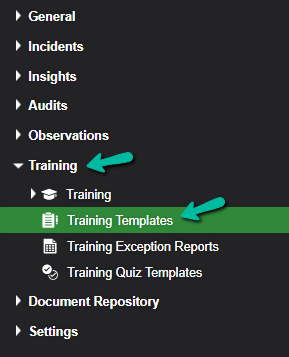
2. Enter your dashboard, then from the menu on the left select Training > Training Templates.
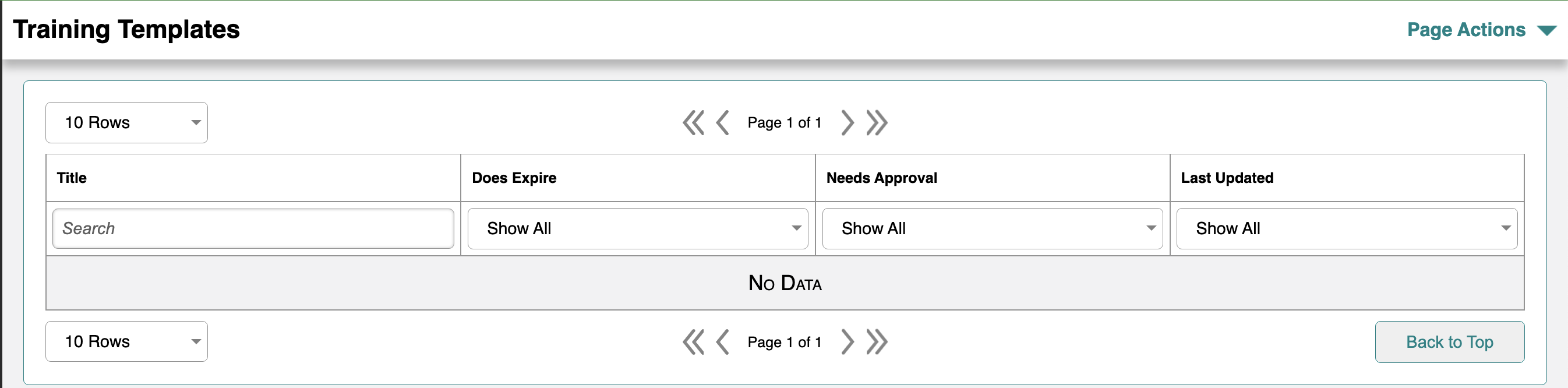
3. You will be taken to the Training Templates page. From here you will be able to:
Create a new training template
View/edit existing training templates
Delete existing training templates
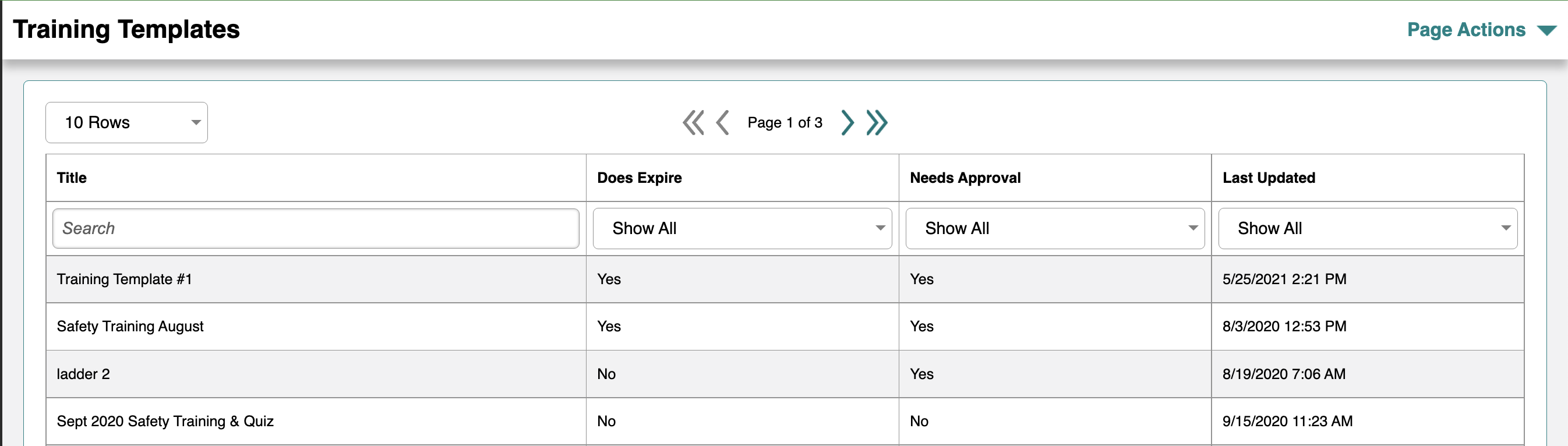
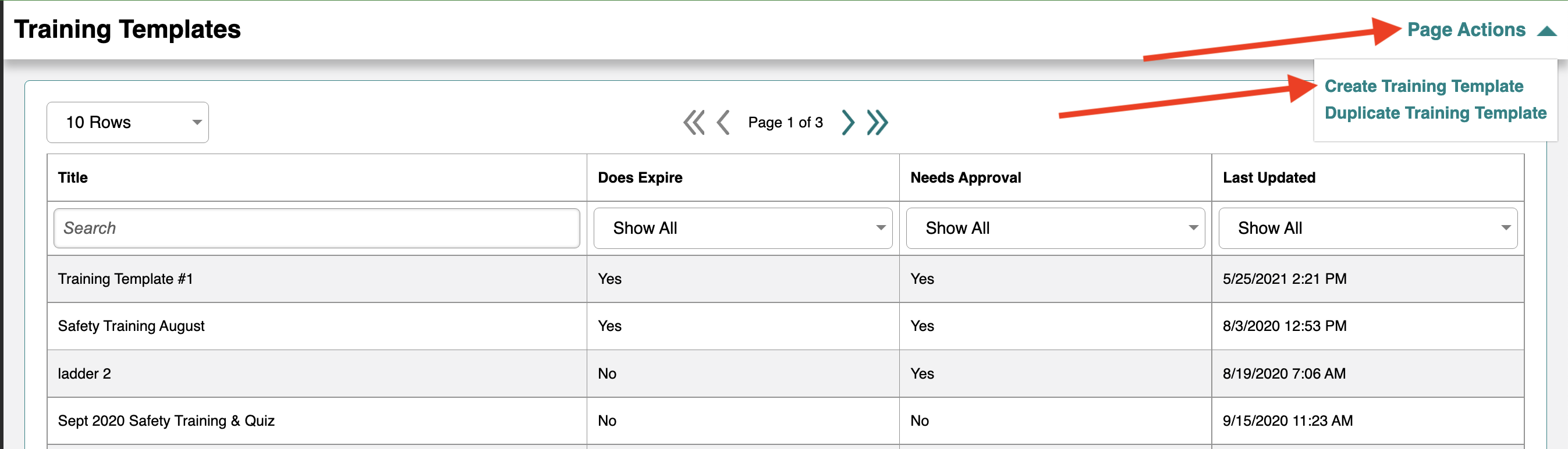
4. To create a new template, click on Page Actions in the upper right corner and select Create Training Template
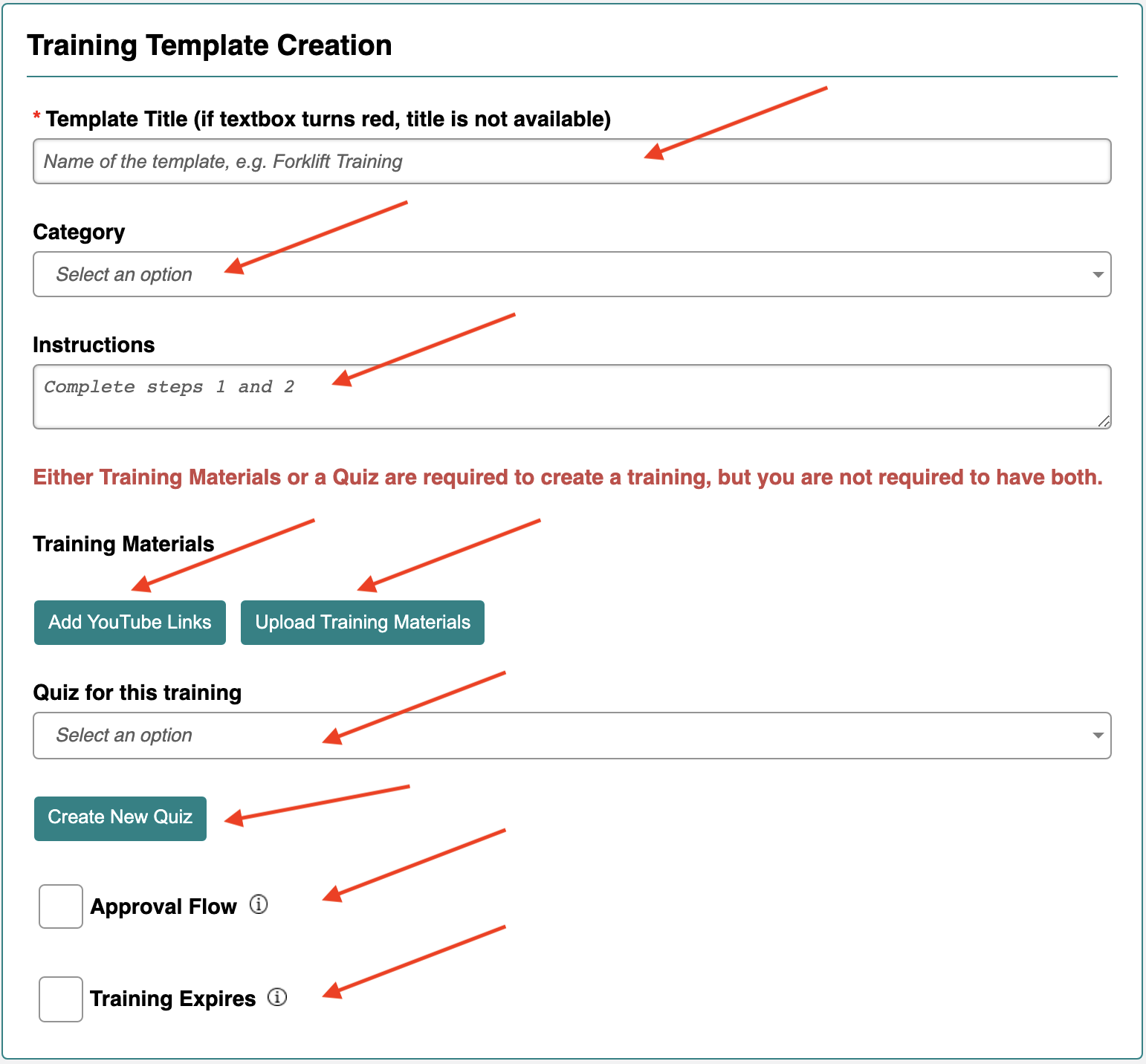
5. You will then be taken to the template creation page. You will be able to add:
Template Title (NOTE: Please be concise and consistent with training titles for Analytics purposes)
Category (indicate if the training is OSHA Required, Compliance related, Optional, or Other)
Instructions (This displays to employees while they are taking the training)
YouTube Links (Allows you to link to YouTube videos using their URL)
Upload Training Materials (Allows you to upload your own content - any file type is accepted -- doc, PDF, PPT, mp4, etc.).
Quiz for this Training (This will attach a quiz template, which you can learn more about here. Quizzes must either be created before being added to a training template, or you can even create your quiz from the training template using the Create New Quiz button).
Approval Flow (If you want to have a specific user confirm that the training was done successfully, mark this box. Learn more about how to use this feature here)
Training Expires (Mark this box if the training being given has an expiration date. You’ll then be asked for the number of days/weeks/years you want to use to create the expiration date after the initial training is completed).
NOTE: All Training Templates require a Title and at least a quiz, youtube link, or training material in order to be created.
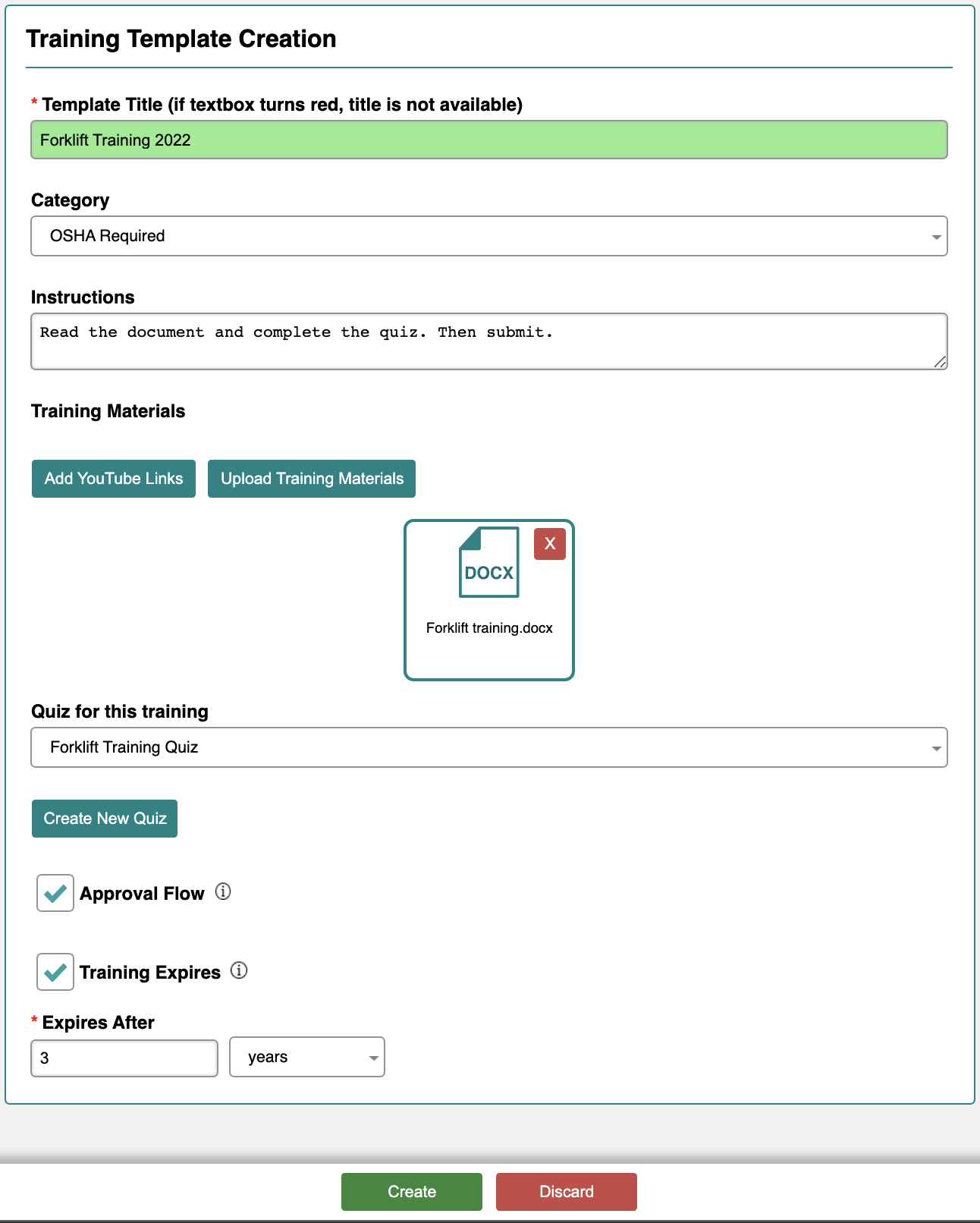
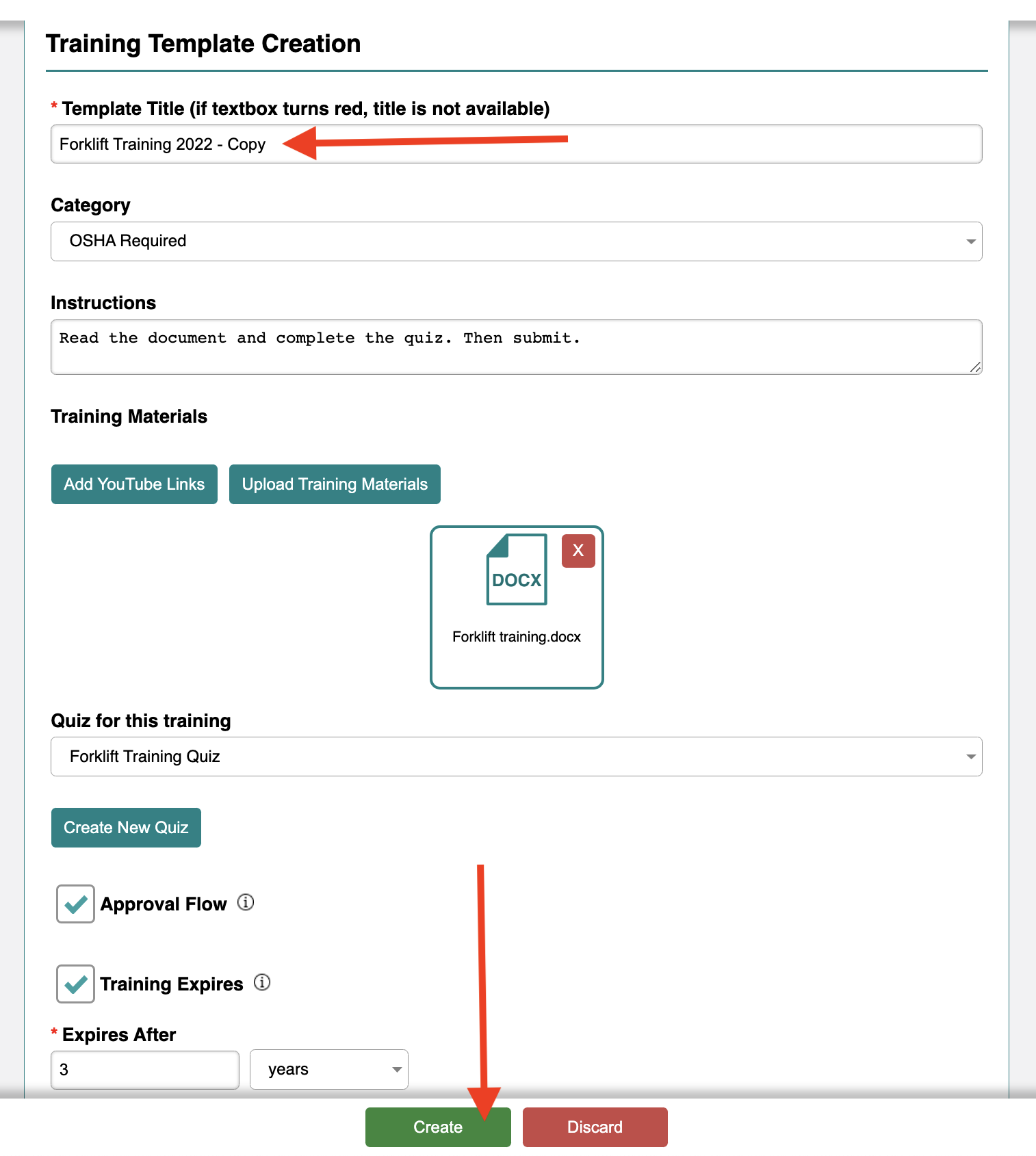
6. Once you have gone through the various sections of the template, your training template should look something like this:
NOTE: Quizzes MUST be created before saving the training template. Please refer here for more information on how to create a quiz template.
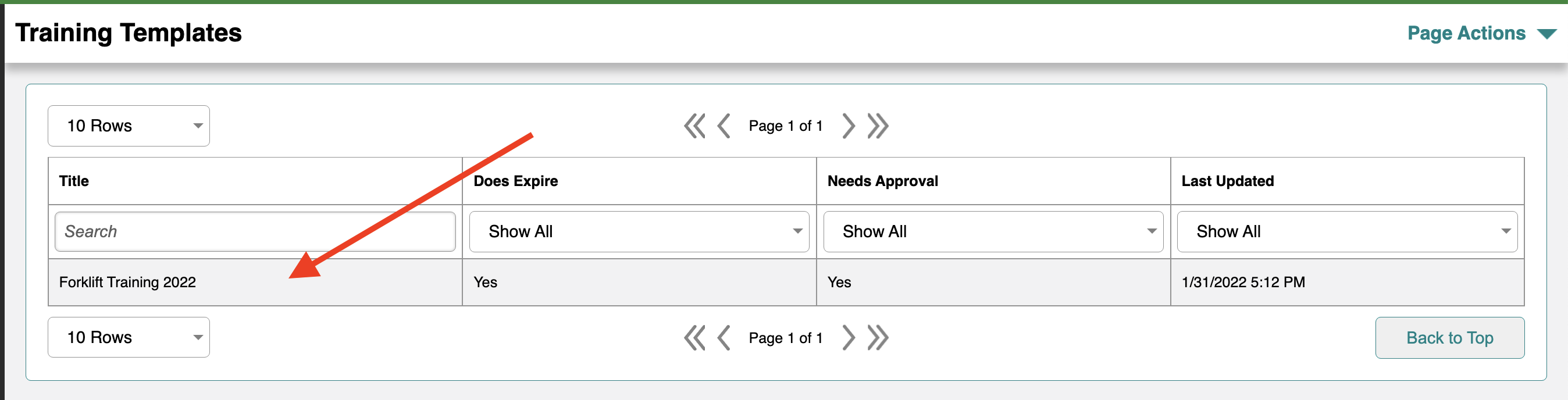
7. If you are satisfied with your selections, click the Create button at the bottom of the page. You will then be taken back to the Training Template page where you will find the template you just created:

Managing Existing Training Templates
To find and edit an existing training template, follow steps 1 and 2 above to get to the Training Template page.
2. Once there, find and select the template you wish to work on by clicking on it from the list of training templates.
3. Once you have selected the training template you wish to edit, you will be taken to the template creation page. Click on the Edit Template button in the top right corner.
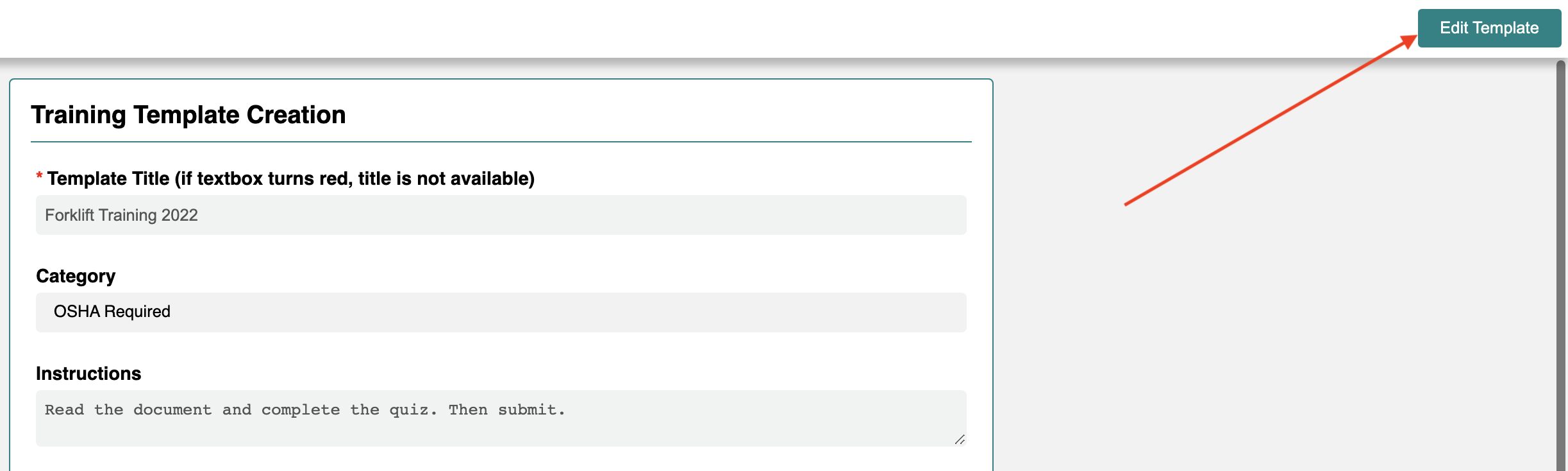
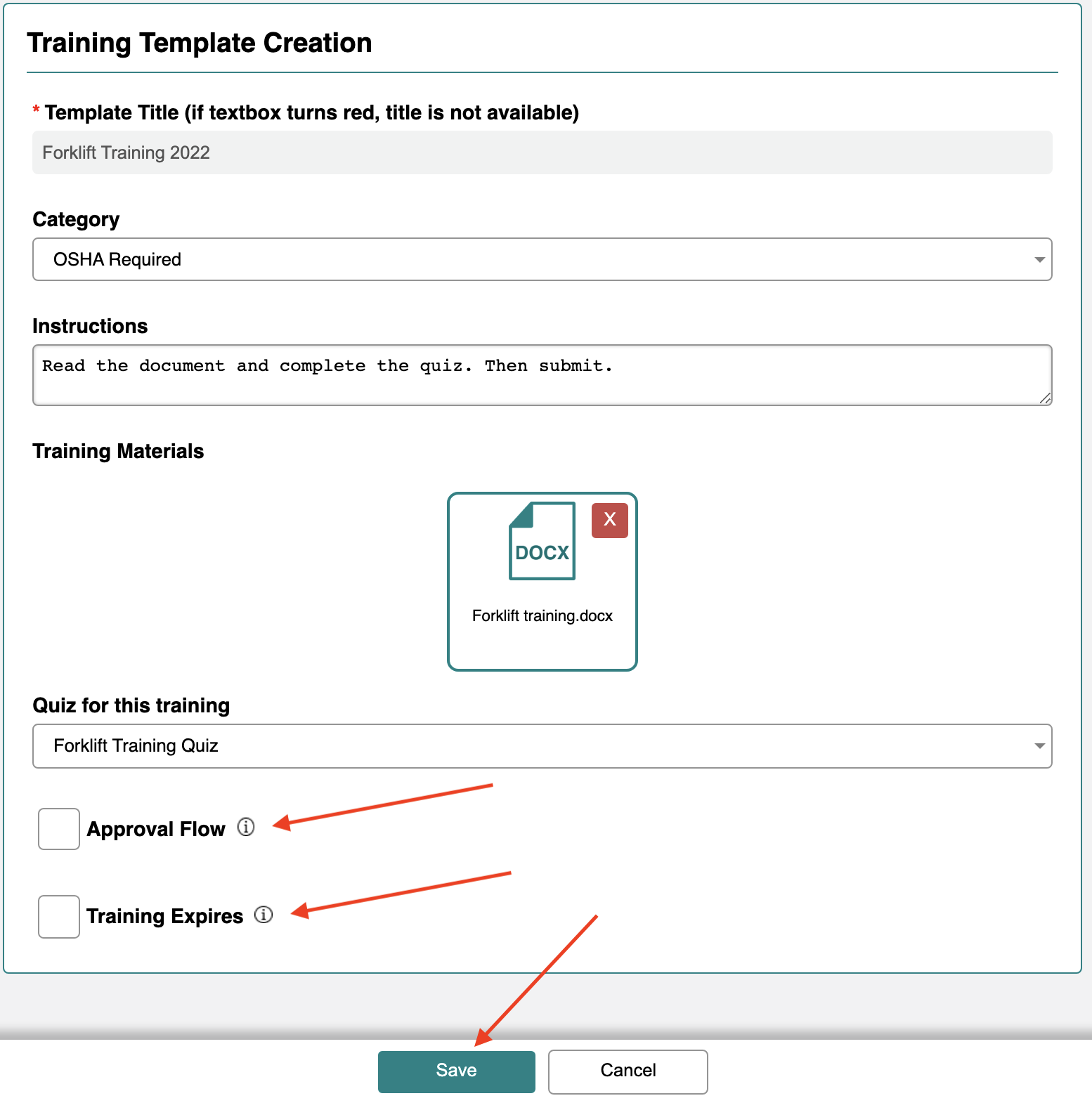
4. You will be able to edit all sections of the training template just like in steps 5 and 6 above. Once you are satisfied with your changes, click the blue Save button at the bottom of the page. You will be taken back to the Training Template page.
NOTE: The only section of the training template you will not be able to edit is the training title.
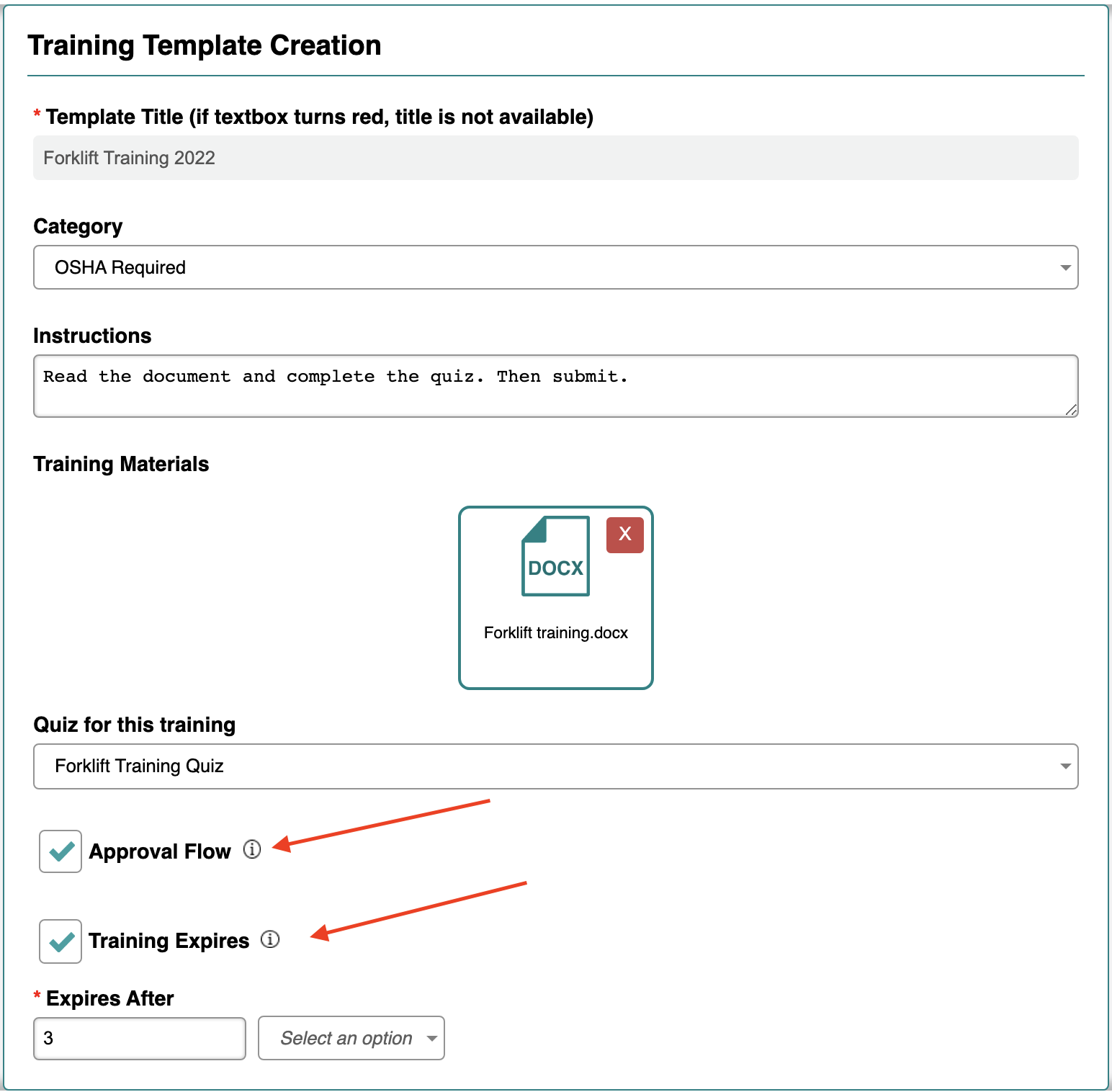
5. If you wish to duplicate the training template, select from the training template page Page Actions and Duplicate Training Template.
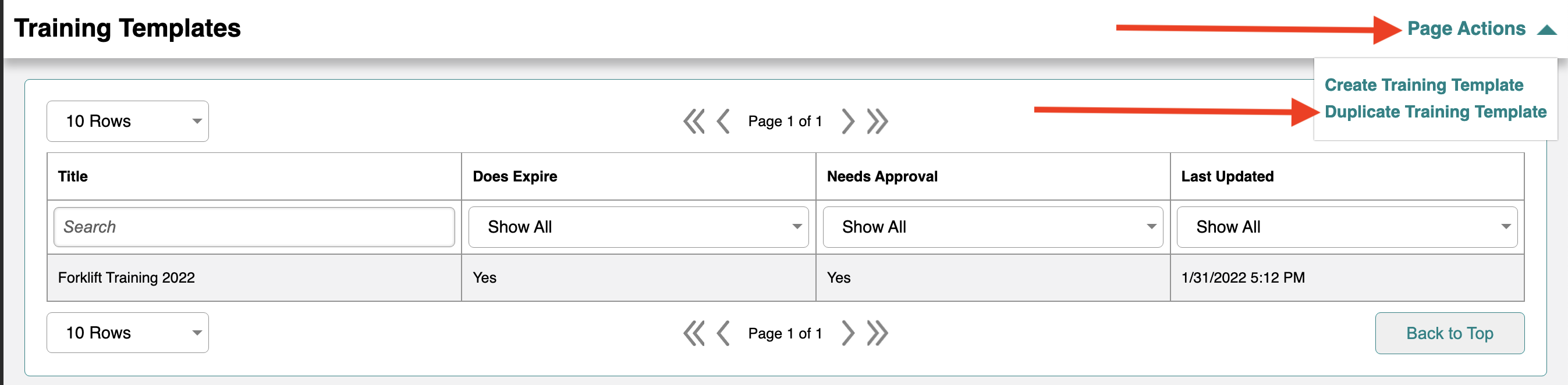
6. You will then see a window where you will select the template you wish to duplicate from a drop down list. Once you have made your selection, click Create and you will be taken to where you can edit the template.
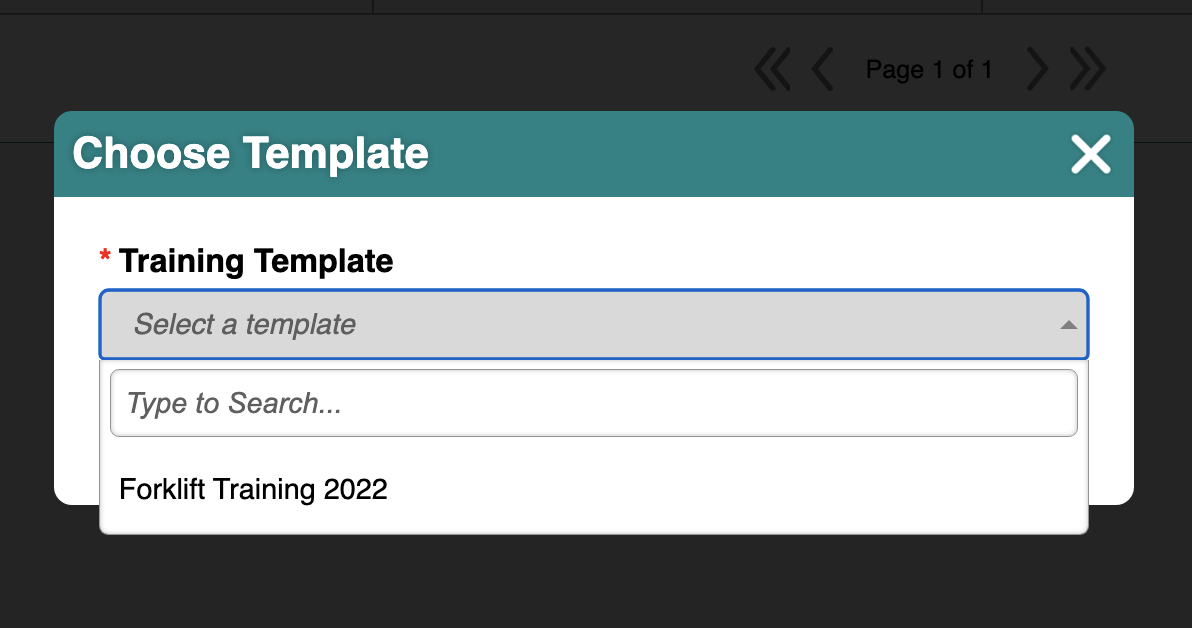
7. You can now change the title of the training template to fit your needs. It will default to "_________ - Copy" unless you change it. Once you have made you changes, click the green Create button at the bottom of the page.
8. If you need to delete a training template, repeat steps 1-3 of this section to find the training template you wish to delete.
9. Once you have found the training template you are looking for and have enabled editing, you will see in the upper right corner a red Delete Template button.
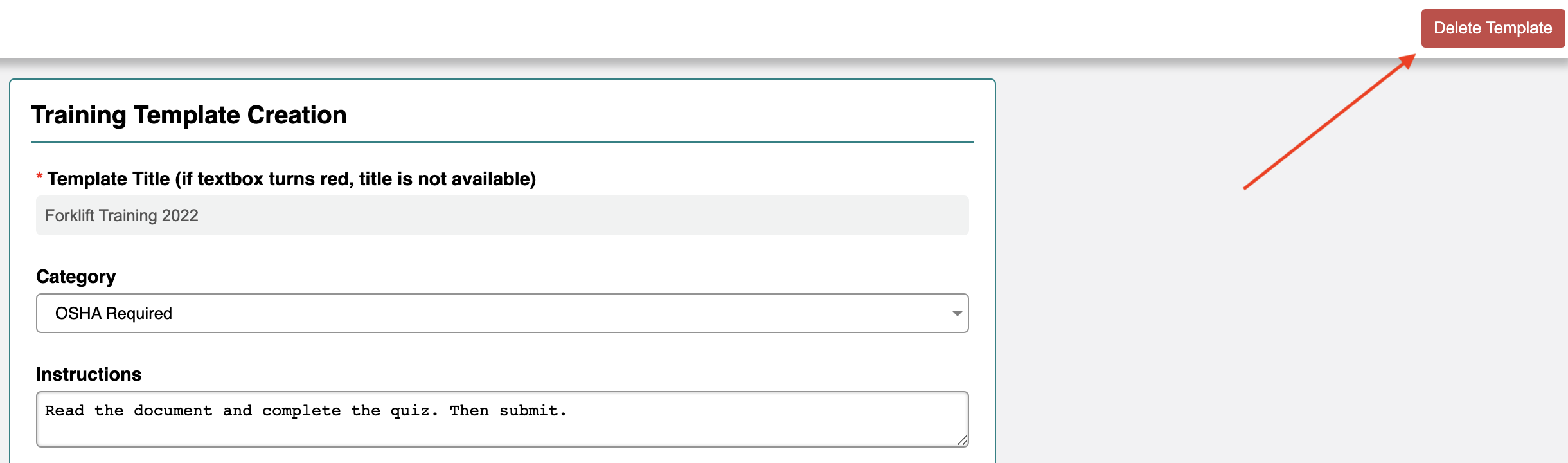
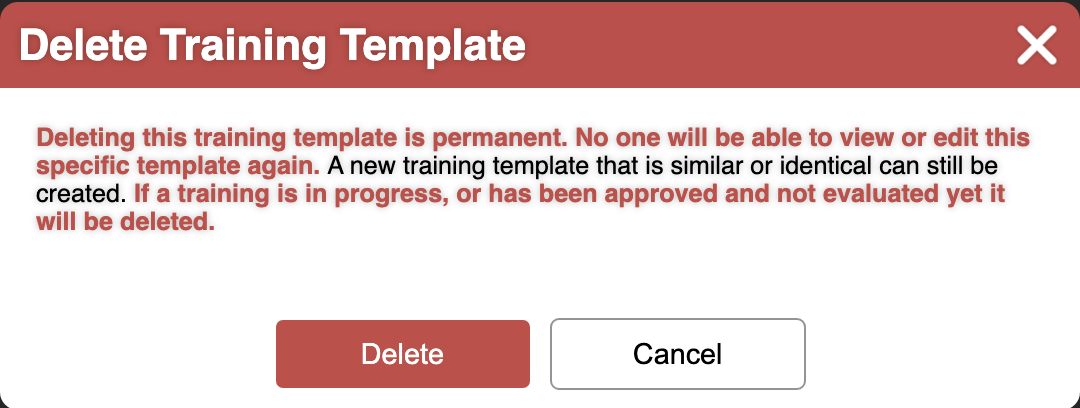
10. Click the red Delete Template button. You will be asked to confirm your action. Once confirmed, that training template is deleted and will no longer display on the Training Template page.
NOTE: If you delete a template by mistake, please contact Customer Success for assistance.