
Completing an Assigned Safety Training on the Mobile App
Updated 02/11/2022
When you have been assigned a Safety Training, chances are you will receive an email or mobile push notification, depending on your notification preferences set up in your profile. This document outlines how to complete an assigned training on the mobile app.
Sign in to the mobile app (you may be directed here by a mobile push notification telling you about the training you were assigned)
If you are not taken directly to the Training from a mobile push notification, you can access any trainings assigned to you by clicking on the Safety Trainings section of your To-Dos List. This will open to show your assigned Safety Trainings:
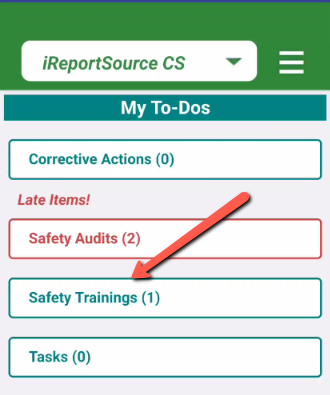
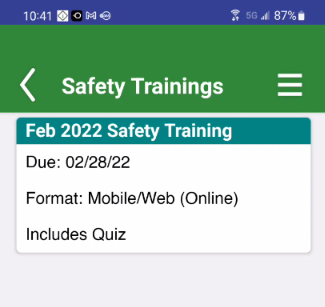
3. Read the Training Info section first. This will show you any instructions provided by your company as well as the due date for this training. Then, click on any Training Materials that have been added. It will keep track of how much time you spend in each of the materials, and this will be visible to supervisors and above at your company.
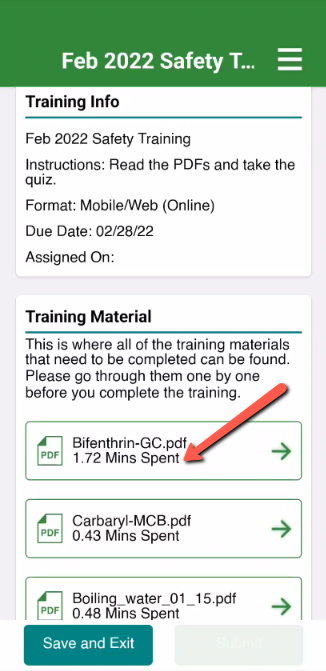
NOTE: Quizzes may or may not be part of the safety training - it is at the discretion of your company whether they will use a quiz for the training.
If there is a quiz: You must open each assigned material before any quiz becomes available. Trainings can also be assigned with only quizzes -- if this is the case, you will only see the Training Info section and the Quiz section, no Training Material section.
If there is not a quiz: You will be able to skip to the Sign & Submit button (step 7):
Taking a Quiz
4. If your training includes a quiz, it will show up after you have opened all of the training materials presented. You will see the Quiz Title, whether or not you can retry the quiz, # of total questions, and what # attempt you are on. Click the Take Quiz button to open the quiz questions:
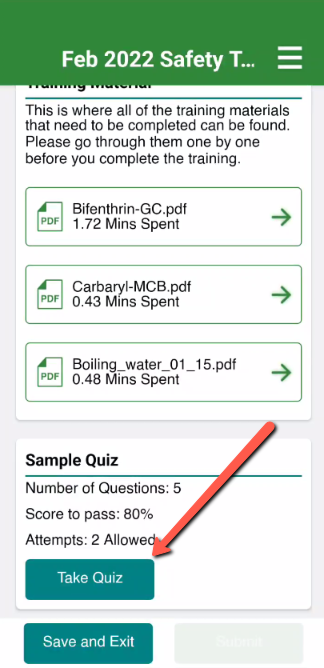
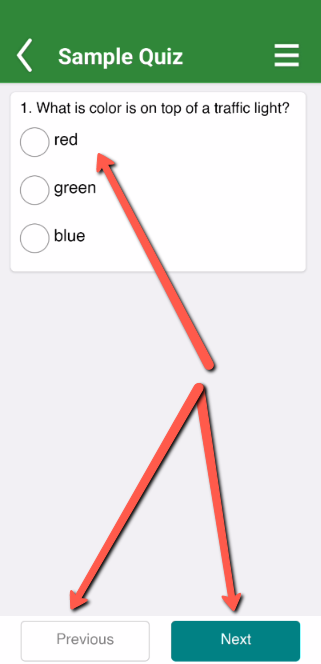
5. When the quiz opens, it will display one question at a time, with a number in the top left showing which question you are on. Simply choose the answer and hit Submit and it will take you to the next question. Hitting Previous will take you to the last question, and hitting Submit on the final question will take you back to the main training page:
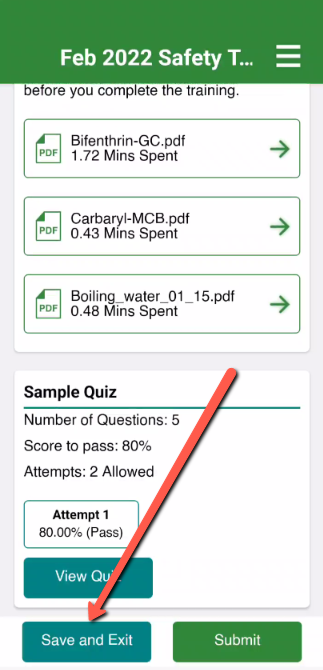
6. At any point until the due date of the training assignment, you can click the Save for Later button and the training will remain in the Safety Trainings section of the app (where you accessed the training originally) for you to come back and finish at a later time.
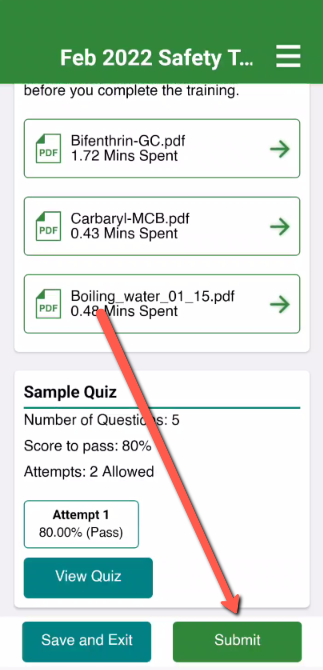
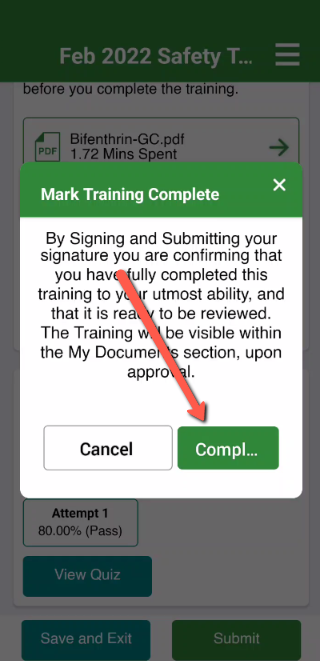
7. When you are ready to submit the quiz, click the Submit button on the main training page. You will be asked to confirm that you have completed the training and that the raining is ready to be reviewed. Click Complete and this will take you to where you will sign off on the training:
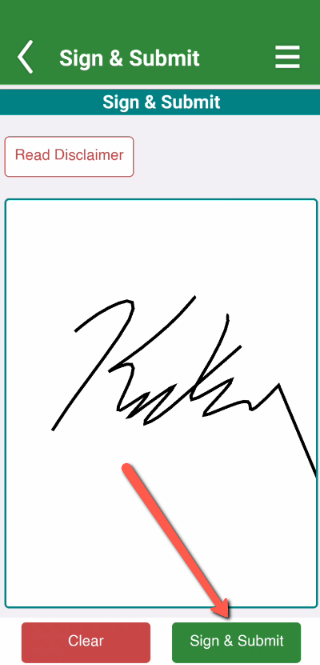
8. Sign your name and then click the Sign & Submit button to complete this training:
What happens next? If the training has an approval flow, it will go to your supervisor for approval. They will review your time spent, quiz score, etc. and decide whether to approve the training as complete, or reject it and assign you further training. After approval occurs, the training will be added to your My Documents area of the Documents menu.
If the training does not have an approval flow, it will automatically show up in the My Documents section of the Documents menu. You can always go back in and review the materials, check your quiz answers and score, and view the training details.