
How to Export Custom Documents Data to Excel or PDF
Updated 10/15/2024
Exporting Custom Documents CSV
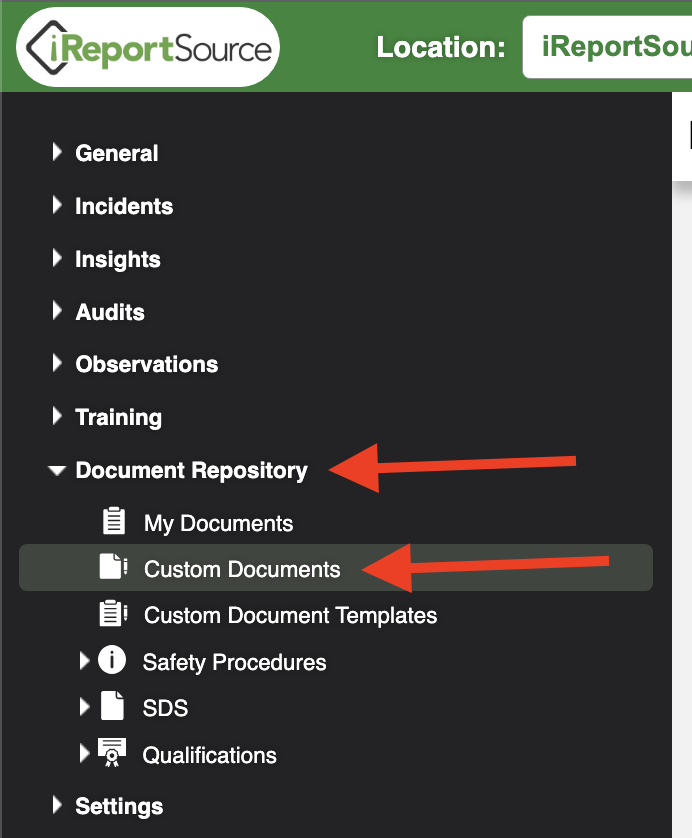
From your Home Page, click on the Document Repository menu to the left and choose Custom Documents:
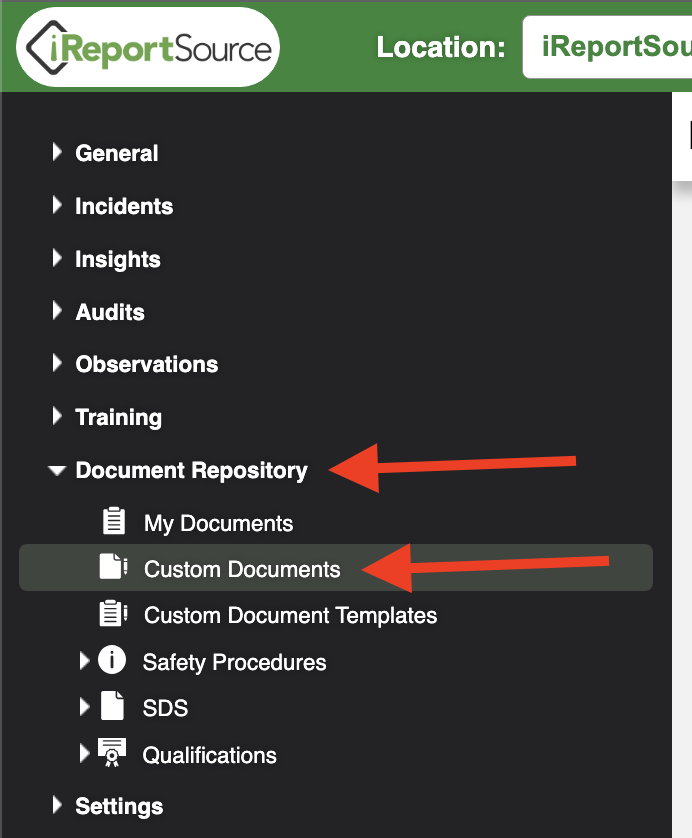
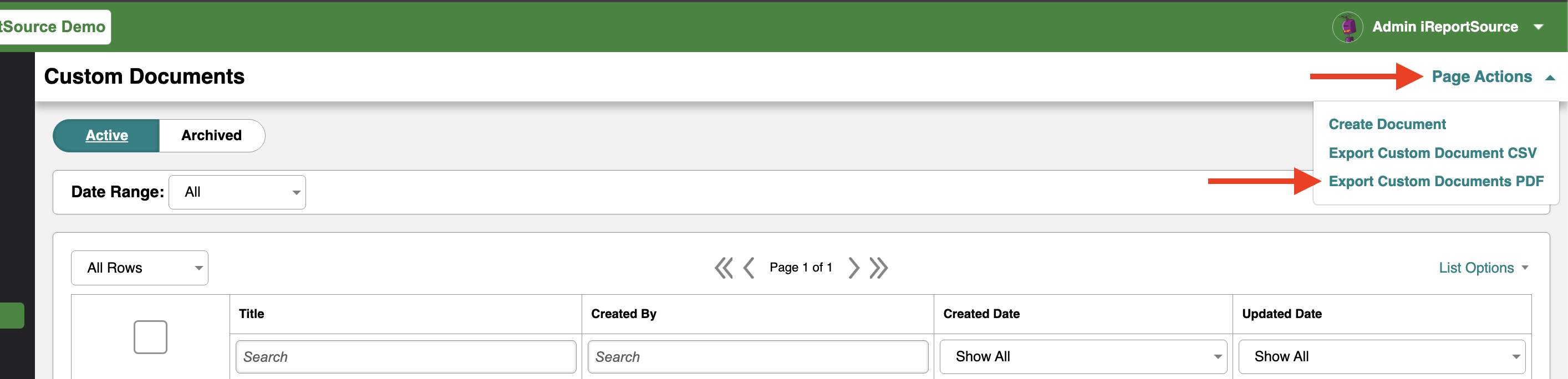
2. Click on Page Actions and choose Export Custom Document CSV:
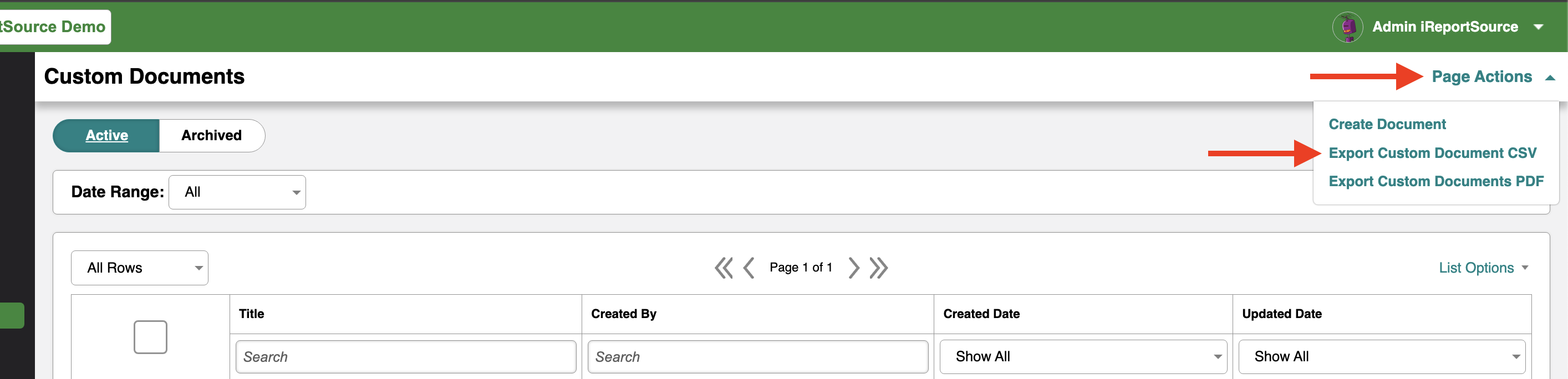
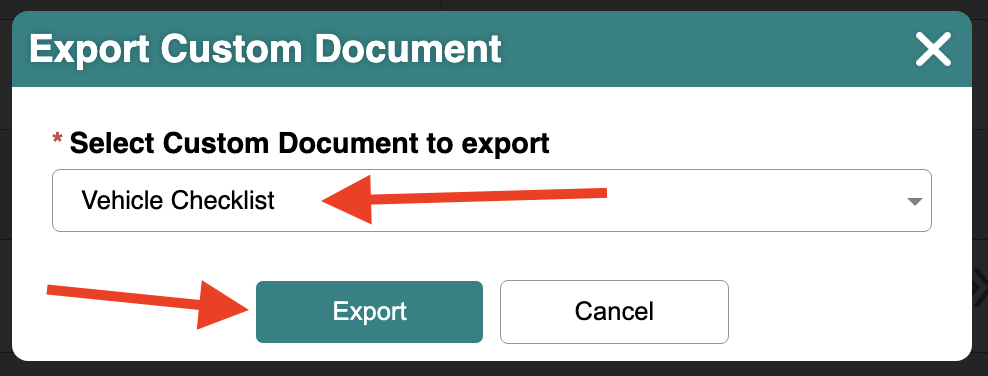
3. Choose which Custom Document you'd like to export data for, then click Export:
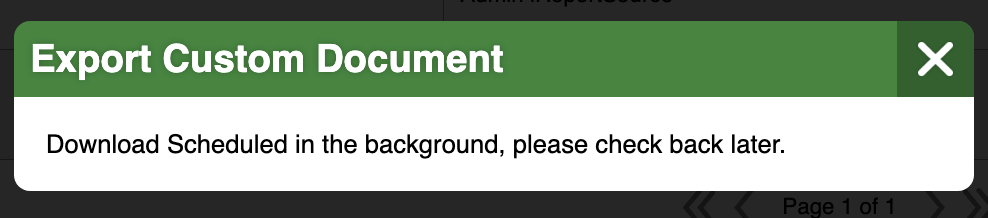
4. The CSV will generate in the background. Click Page Actions again to select and download the newly generated CSV file.
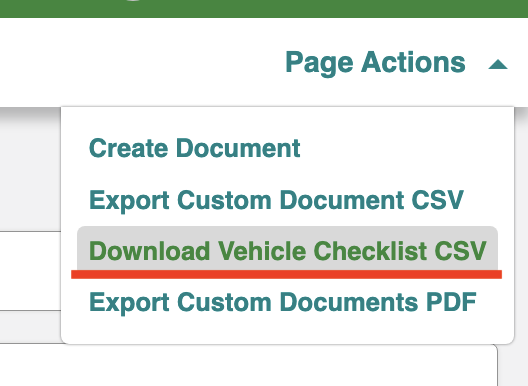
The excel file will then download and you can analyze the data any way you see fit!
Exporting Custom Documents PDF
From your Home Page, click on the Document Repository menu to the left and choose Custom Documents:
2. Click on Page Actions and choose Export Custom Document PDF:
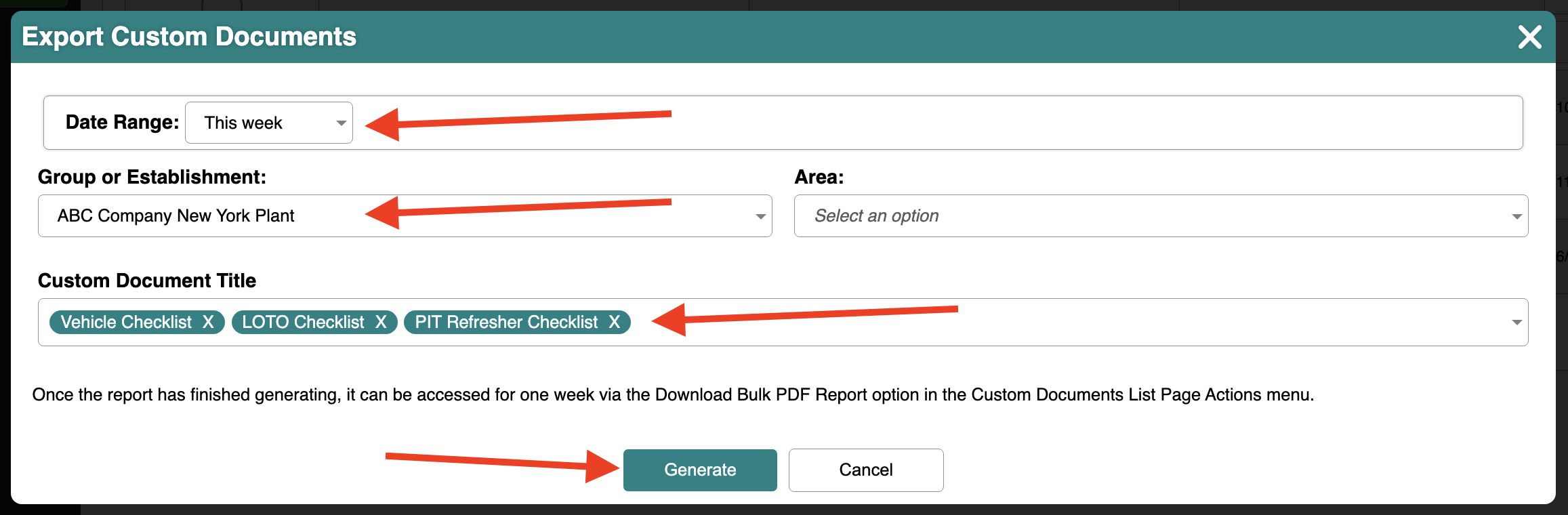
3. Chose the Date Range, Group/Establishment, Area (if applicable), Title and then click Generate.
4. Under Page Actions, click Download Bulk PDF Report.
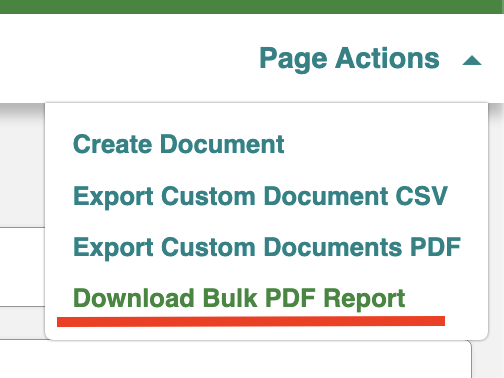
All Custom Document entries for the chosen information in step 3 will be generated into a single PDF for you to now use as needed.